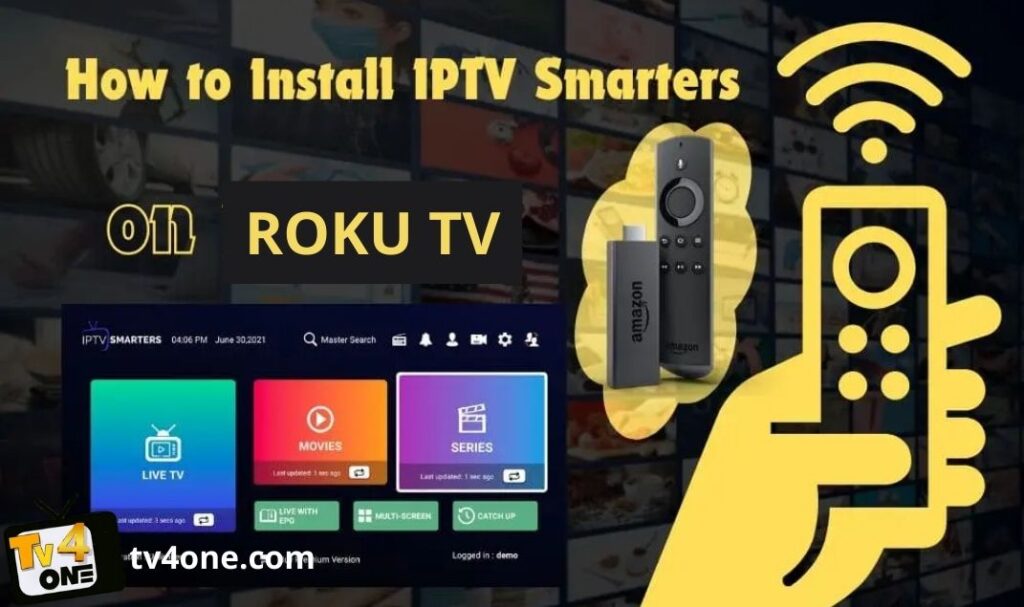
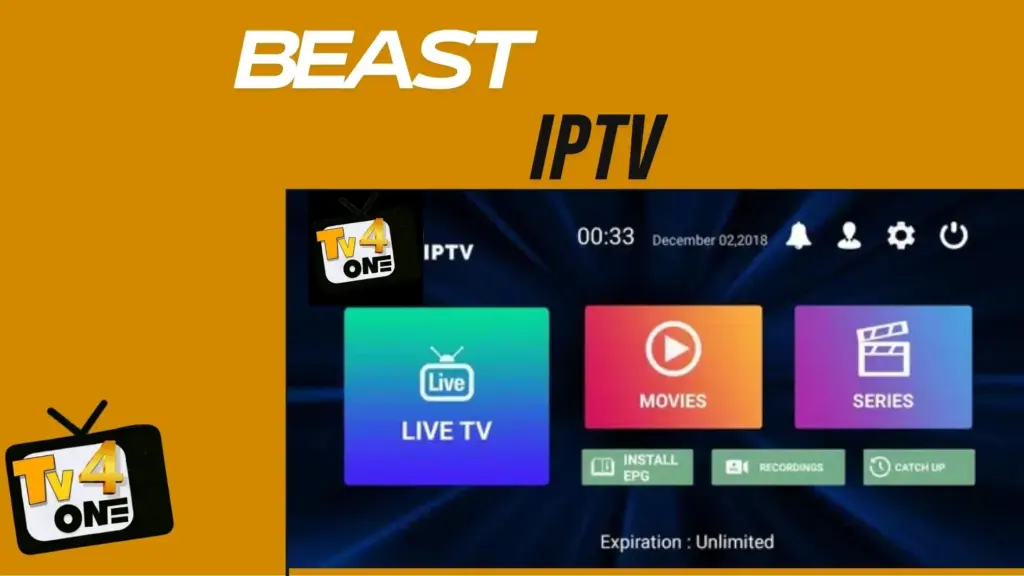
Setting up Beast TV on IPTV Smarters Pro is the most popular way to access Beast TV’s extensive channel lineup across all your devices. This comprehensive guide walks you through every step of the Beast TV Smarters setup process, from initial installation to advanced configuration options.
IPTV Smarters Pro offers the best viewing experience for Beast TV subscribers, providing a user-friendly interface, electronic program guide (EPG), and seamless streaming across multiple devices. Whether you’re using Android, iOS, Fire TV Stick, or Smart TV, this Beast tv setup guide covers everything you need to know.
Beast TV Smarters Setup
Before starting your Beast TV Smarters setup, ensure you have:
Required Information from Beast TV:
- Server URL/Portal URL – Your Beast TV server address
- Username – Your Beast TV account username
- Password – Your Beast TV account password
- Active Beast TV subscription – Valid subscription with login credentials
Compatible Devices:
- Android smartphones and tablets (Android 5.0+)
- iOS devices (iPhone/iPad with iOS 12.0+)
- Amazon Fire TV Stick and Fire TV Cube
- Android TV boxes and Smart TVs
- Windows PC and Mac computers
- NVIDIA Shield TV
Network Requirements:
- Stable internet connection (minimum 10 Mbps for HD streaming)
- Wi-Fi or Ethernet connection
- VPN (optional, for enhanced privacy)
Step-by-Step Beast TV Smarters Setup Guide
Step 1: Download and Install IPTV Smarters Pro
For Android Devices:
- Open Google Play Store on your Android device
- Search for “IPTV Smarters Pro” in the search bar
- Select the official IPTV Smarters Pro app (by Whmcs Smarters)
- Tap “Install” and wait for the download to complete
- Open the app once installation finishes
For iOS Devices (iPhone/iPad):
- Launch the App Store on your iOS device
- Search for “IPTV Smarters Pro”
- Download the official app by Whmcs Smarters
- Wait for installation to complete
- Open IPTV Smarters Pro from your home screen
For Amazon Fire TV Stick:
- Go to Fire TV Settings > My Fire TV > Developer Options
- Enable “Apps from Unknown Sources”
- Install Downloader app from Amazon App Store
- Open Downloader and enter the IPTV Smarters Pro APK URL
- Download and install the APK file
- Return to Fire TV home screen and open IPTV Smarters Pro
For Smart TVs (Samsung/LG):
- Press Home button on your TV remote
- Navigate to Smart Hub (Samsung) or LG Content Store (LG)
- Search for “IPTV Smarters Pro” in the app store
- Install the application
- Launch IPTV Smarters Pro from your apps menu
Step 2: Configure Beast TV Login Settings
Once IPTV Smarters Pro is installed, follow these steps to configure your Beast TV connection:
- Open IPTV Smarters Pro – Launch the app on your device
- Select “Add New User” – Tap the + icon or “Add User” button
- Choose Login Method – Select “Login with Xtream Codes API”
- Enter Beast TV Credentials:
- Server URL: Enter your Beast TV server address (found in your subscription email)
- Username: Input your Beast TV username
- Password: Enter your Beast TV password
- Connection Name: Type “Beast TV” or any preferred name
Step 3: Complete Beast TV Smarters Configuration
After entering your Beast TV credentials:
- Tap “Add User” – The app will verify your Beast TV subscription
- Wait for Loading – IPTV Smarters Pro will download your Beast TV channel list and EPG data
- Setup Complete – You’ll see “Loading Complete” or similar success message
- Access Your Content – Beast TV channels will now appear in the app
Step 4: Optimize Beast TV Streaming Settings
To ensure the best Beast TV viewing experience on IPTV Smarters Pro:
Player Settings:
- Navigate to Settings > Player Settings
- Set “Video Decoder” to “Hardware Decoder” for better performance
- Enable “Force Landscape Mode” for full-screen viewing
- Adjust “Buffer Size” to 10-15 seconds for smooth playback
EPG Configuration:
- Go to Settings > EPG Settings
- Enable “Auto EPG Update” for current program information
- Set EPG update frequency to “Every 12 hours”
- Choose your preferred time format (12-hour or 24-hour)
Parental Controls:
- Access Settings > Parental Control
- Set a PIN code to restrict adult content
- Configure viewing time limits if needed
- Enable “Safe Mode” for family-friendly browsing
Device-Specific Beast TV Smarters Setup Instructions
Android TV Setup
Setting up Beast TV on Android TV requires slightly different steps:
- Enable Unknown Sources
- Install IPTV Smarters Pro
- Launch Application
- Add Beast TV Profile using Xtream Codes API
Apple TV Setup
Beast TV Smarters setup on Apple TV:
- Download from App Store
- Install Application
- Open IPTV Smarters Pro
- Add Beast TV Account via Xtream Codes
Windows PC Setup
For Windows computers:
- Download IPTV Smarters Pro
- Install Software
- Configure Beast TV Account
- Use keyboard navigation for easier control
Troubleshooting Common Beast TV Smarters Setup Issues
“Authentication Failed” Error
Solutions include verifying credentials and subscription status, checking server URL, and contacting support.
Channels Not Loading
Fixes include checking internet speed, clearing cache, restarting the app, or switching protocols.
EPG Not Updating
Solutions include manual updates and verifying device time settings.
Buffering and Playback Issues
Adjust buffer size, use wired connection, close background apps, or use external video players.
Advanced Beast TV Smarters Configuration
Includes multi-profile setup, favorites management, and catch-up/recording options.
Maintaining Your Beast TV Smarters Setup
Tips include updating the app, monitoring subscription status, clearing cache, and optimizing internet performance.
Comparing IPTV Smarters Pro with Other IPTV Players
Lists alternatives like TiviMate, Perfect Player, and GSE Smart IPTV.
Legal Considerations for Beast TV Usage
Advises on authorized subscriptions, local laws, and privacy protection.
Getting Support for Beast TV Smarters Issues
Provides support channels and guidance for both Beast TV and IPTV Smarters Pro.
Conclusion
Setting up Beast TV on IPTV Smarters Pro provides an excellent streaming experience with professional features and reliable performance. By following this comprehensive guide, you’ll have your Beast TV service configured and optimized for the best possible viewing experience across all your devices.
Copyright © Tv4one 2026 all rights reserved