USING XCIPTV
- Download XCIPTV from the Playstore.
- Open the app.
- Choose Xtream Codes API.
- Enter the username, password and API URL received by email.
- Enjoy .
USING IPTV SMARTERS PRO
1. We will first install the Downloader app
This app will help you sideload IPTV Smarters (because browser downloads are not allowed)
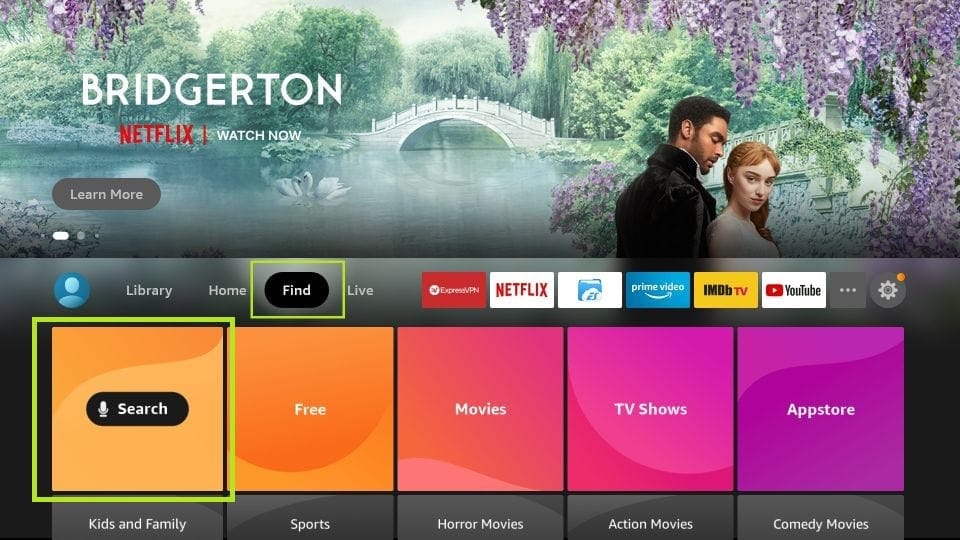
2. Click the Find > Search option on the home screen of FireStick
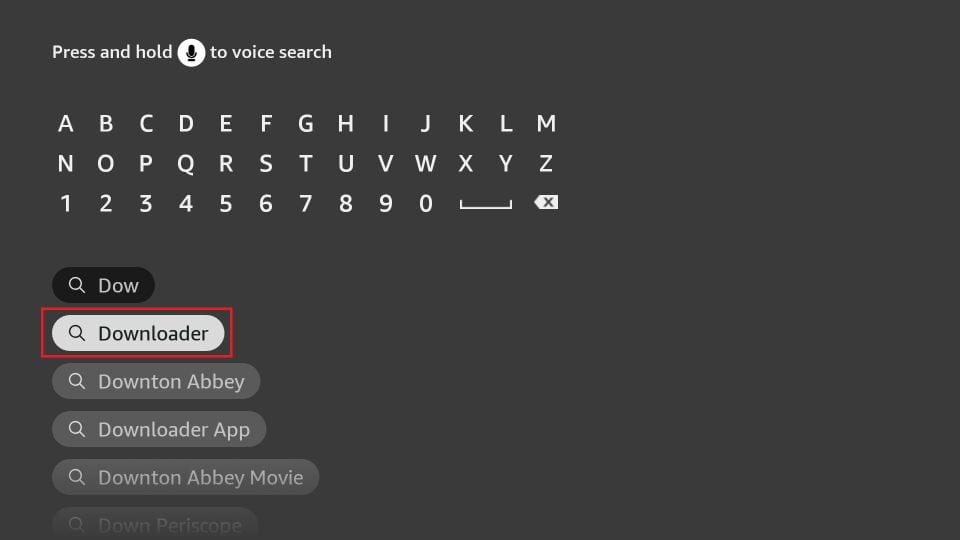
3. Type the name of the app (which is Downloader)
Click the Downloader option when it is displayed in the search results
Choose the Downloader icon on the following screen and download and install the app
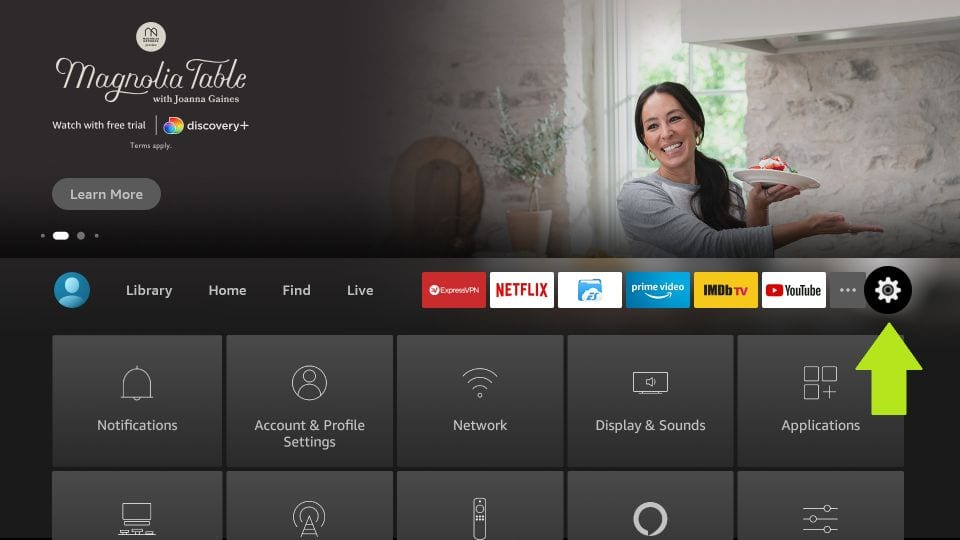
4. Get back to the home screen of FireStick after installing the Downloader app
In the menu bar, click Settings
5. In the Settings, choose the option My Fire TV
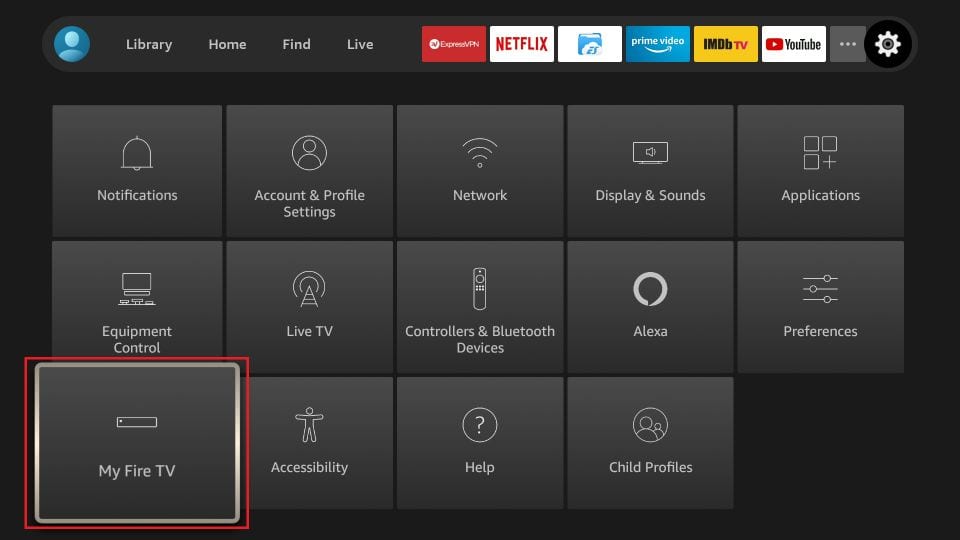
6. When the following set of options are displayed on the next screen, click Developer Options
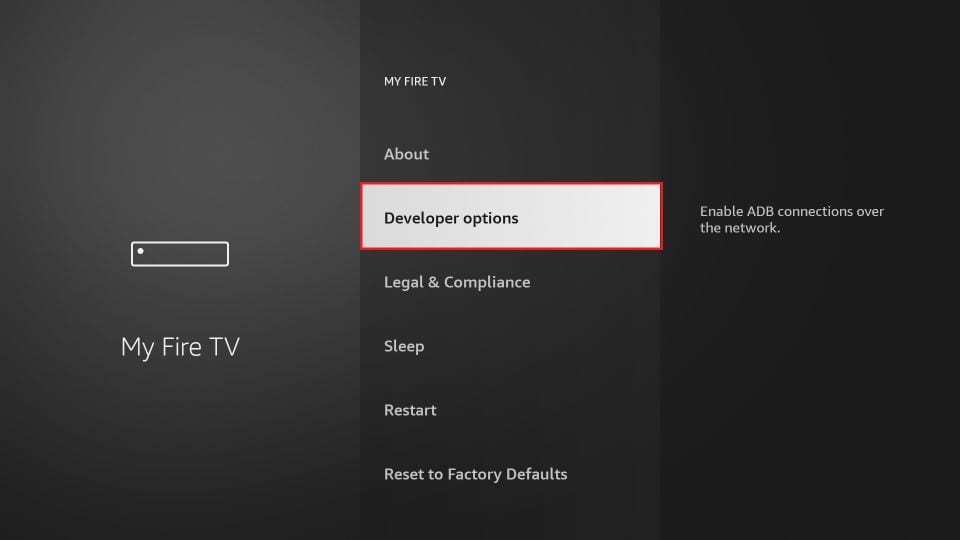
7. Click Install from unknown apps
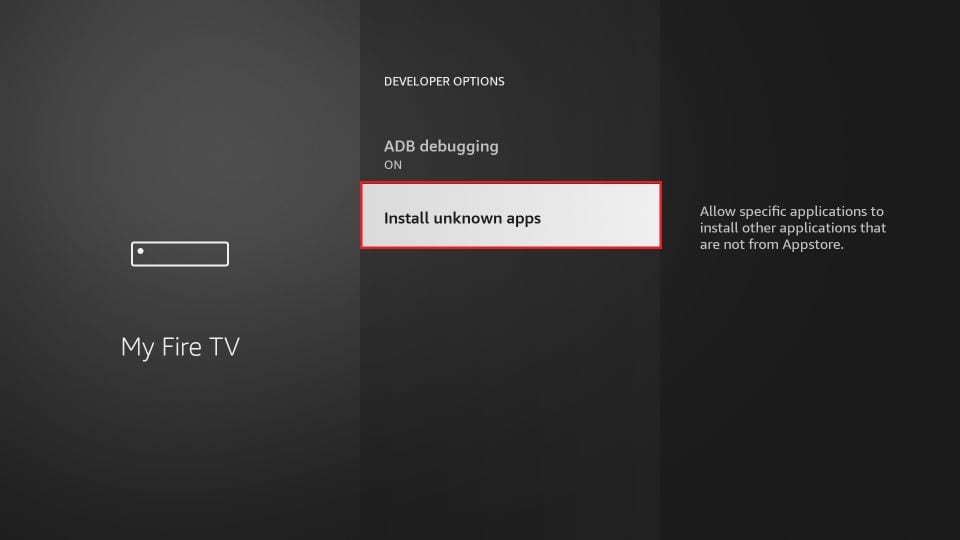
8. Click Downloader to change the status to ON
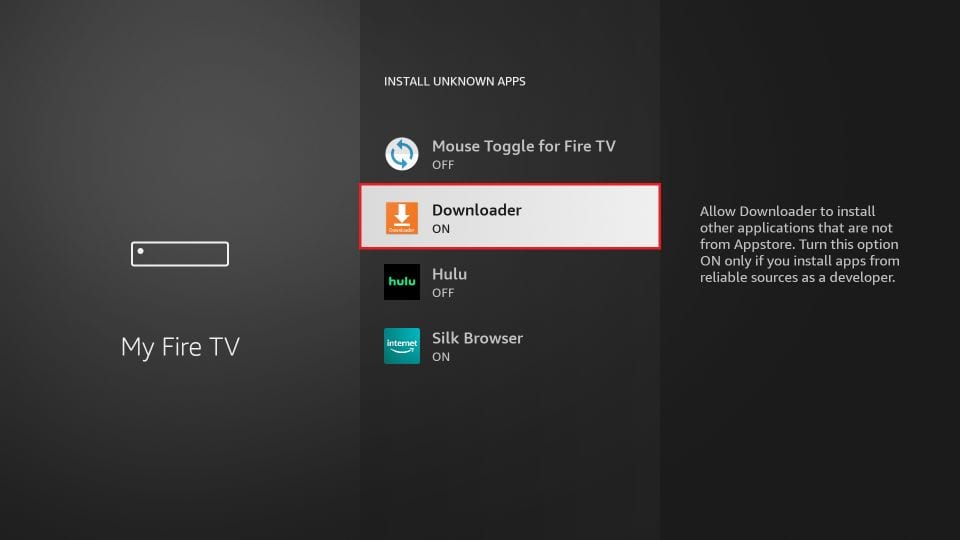
With this, you have configured the FireStick settings to allow the installation of IPTV Smarters and other third-party apps. Follow the steps below:
9. You may now open the Downloader app
When you run this app for the first time, a set of prompts will appear. Dismiss them until you see the following screen
On this screen, you need to click the URL textbox on the right side (make sure Home option in the left menu is selected) where it says ‘http://’
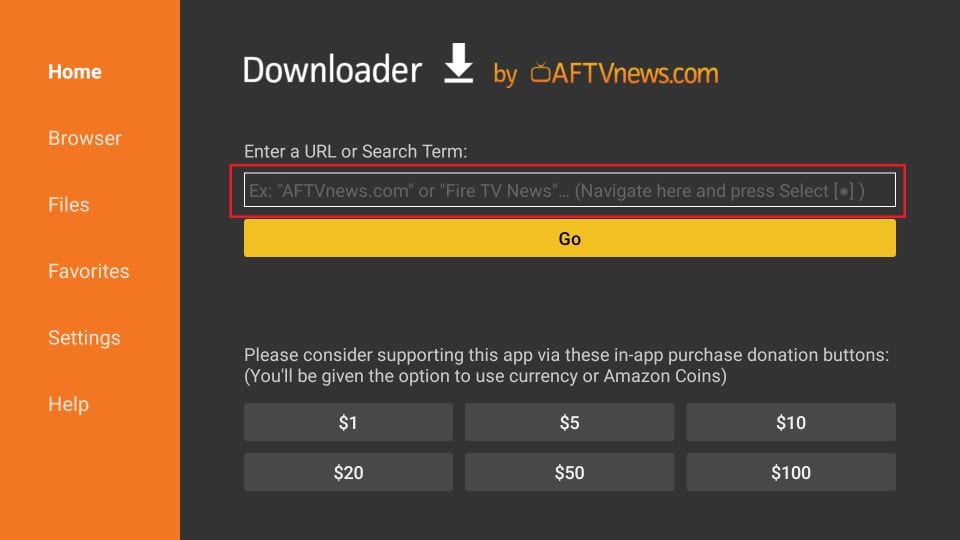
10. Go ahead and enter the following code on this window:
78522
Note: You may also use the shortened version of the URL iptvsmarters.com/smarters.apk
Click GO
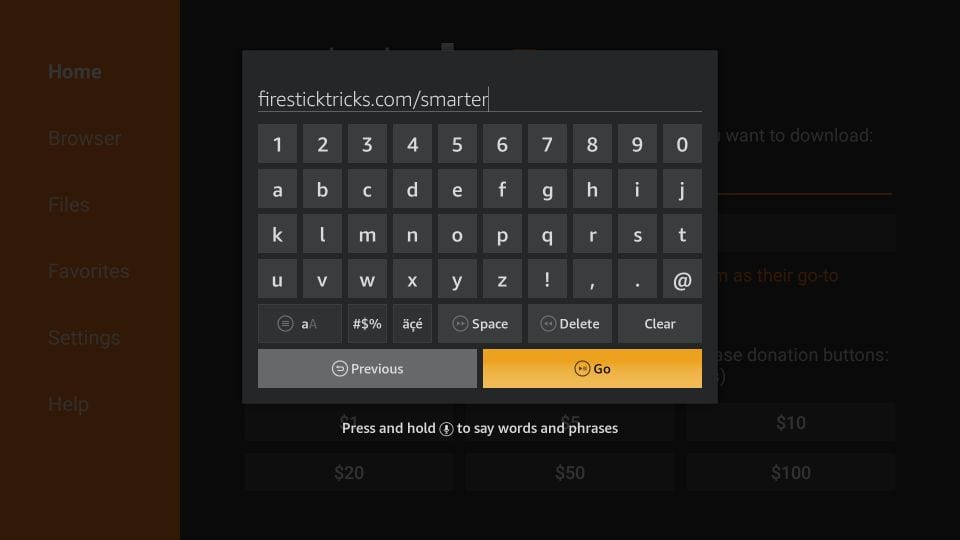
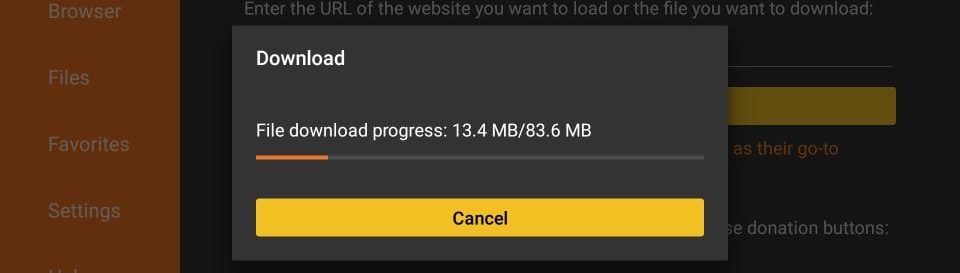
11. Give it a minute or two until the IPTV Smarter is downloaded onto your FireStick device
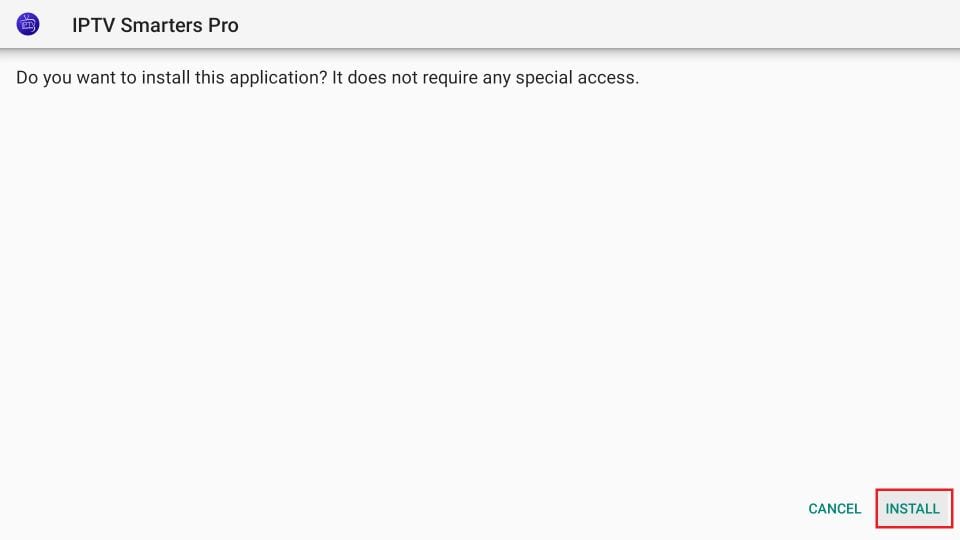
12. When the download has completed, the Downloader app will run the APK file and the installation will start
Click Install
13. Wait for the installation to finish
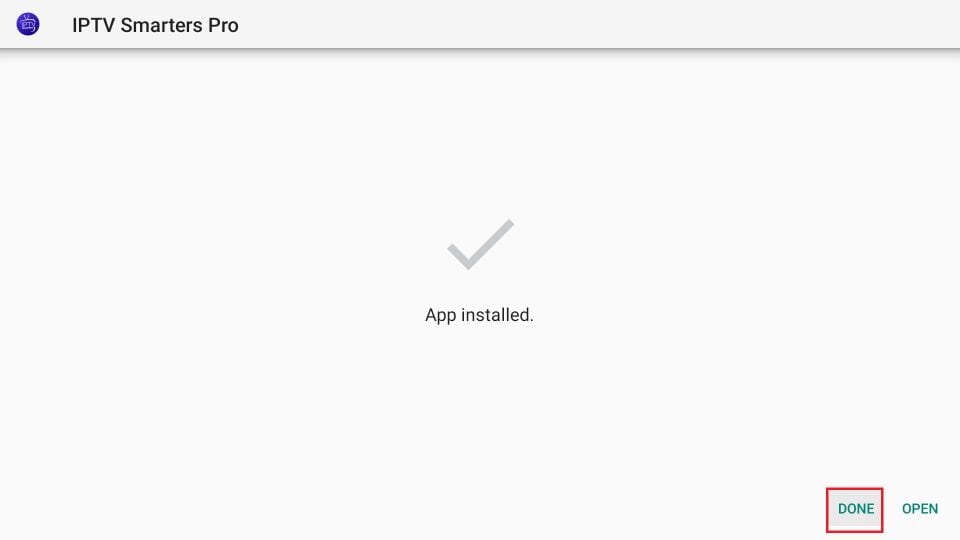
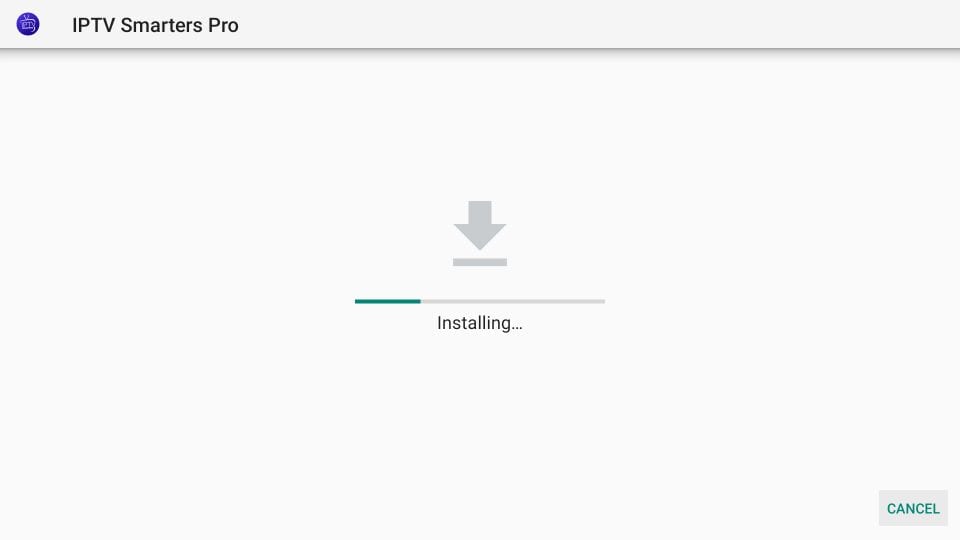 14. Installation is concluded with the App installed notification
You may now choose to click OPEN and get started with IPTV Smarters
14. Now all you need to do is log in using the xtream code we sent you.
USING TIVIMATE IPTV PLAYER
- Go to Play store
- Search for Tivimate IPTV Player and download it.
- Open the app
- Click on Add playlist
- Insert your IPTV subscription Xtream code.
- Click on Okay and wait for the Channels to load.
USING SMART ONE IPTV
You will need to use the controller app named “Smart One IPTV” to proceed. You can get it for seven days for free. Then you can make a one-time fee of 10$ approximately and start using it.
- Download the Smart One Iptv app from the store
- Once you download the Smart IPTV app, launch it.
- Keep a note of MAC Address that you can see on the screen.
- Now visit this page.
- Navigate to the section named as “From m3u Playlist URL”. You need to enter the MAC address in here. You should also include your unique IPTV subscription URL (sent to you by email after your subscription) under the field called M3u.
- Now click on generate.
- Restart the app and you should see the channels.
USING SMART IPTV
The procedure is nearly the same as Smart One IPTV.
USING IPTV SMARTERS PRO
- This app is our number one recommendation.
- You can download it from here
- Just login using the xtream code sent to you by email and you’re good to go.

Using MYIPTV Player
- From the windows store download MyIPTVPlayer.
- Go to Settings, then select add new playlist.
- In the Remote Channel List section enter any name as the list name, and paste the url we provided by email in the url field.
- Go back to Settings and select the channel playlist you just added.
- Go to the channels section and enjoy.
- Download the m3u link we sent by email.
- Open the download file using Perfect player.
Connect your MAG Device to internet then follow the below steps.
- Navigate to Settings, System Settings, Servers and Portals.
- Set IPTV Beast as Portal 1
- Enter the URL in your email to Portal 1 URL section.
- Leave the name of Portal 2 to empty.
- Leave the URL of portal 2 to empty.
- Save.
- Restart.
- Now you will be able to see the list of channels.
USING IPTV SMARTERS PRO
- This app is our number one recommendation.
- You can download it from the store.
- If you don’t find it in the store please download it from here.
- Once installed, select login via Xtream codes API (XC API), and then login using the username, password and url we sent you.
USING CLOUD STREAM IPTV PLAYER
- Go to App Store and download Cloud Stream IPTV Player.
- Open the App.
- On the upper left corner click on the “dashes” icon.
- In the down left corner click on the “+” sign
- Click on load m3u file
- Click on load m3u from web
- Add the IPTV subscription URL that we sent you in your Email.
USING IPLAY TV
- Go to App Store and download iPlay TV.
- Upload the IPTV subscription URL link that we sent you.
- Now you will be able to see the playlist.
USING GSE SMART IPTV PRO
- Go to App Store and download GSE SMART IPTV pro.
- Accept the EULA Rule.
- Select settings on the left hand corner.
- Locate the menu called “Remote Playlists”
- Select the button named as “+”
- Enter your IPTV subscription URL via selecting add m3u url.
USING KODI KRYOPTON 17
- Launch Kodi app
- In the left menu click on TV
- Click on Add-on browser.
- Click on PVR IPTV Simple Client
- Click on Configure
- Select General
- Enter the IPTV subscription URL.
- Wait for some time until you get the notifications loaded.