
Beast TV on Windows & Mac: Complete Installation Guide 2026
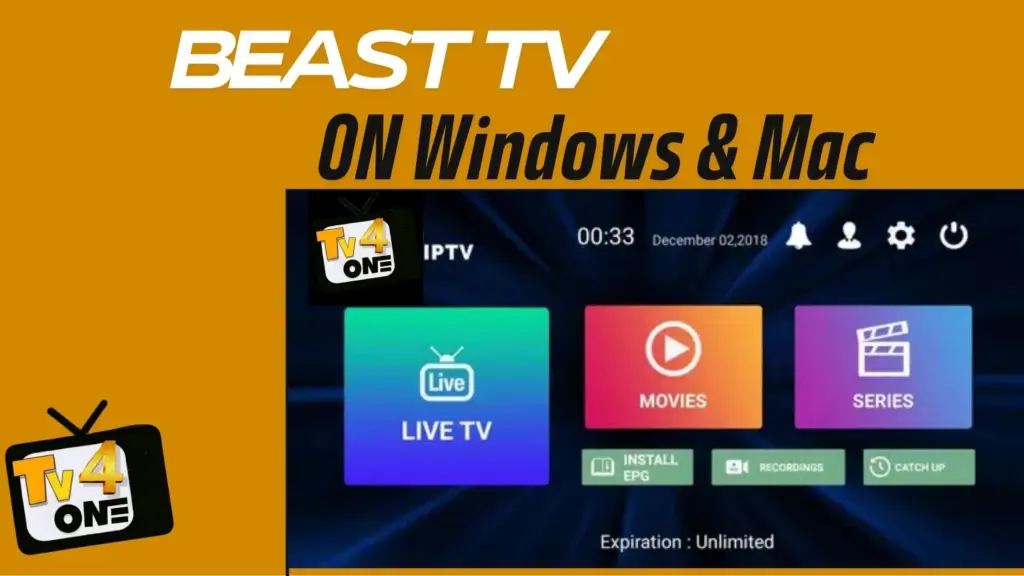
Table of Contents
Looking to install Beast TV on Windows & Mac? You’ve come to the right place. This comprehensive guide walks you through the complete installation process, covers pricing, features, and provides important alternatives you should consider before making your decision.
Beast TV has gained popularity as an IPTV service offering thousands of live channels, but there are some important things you need to know before installing it on your computer.
What is Beast TV IPTV?
Beast TV IPTV provides access to 33,000+ live TV channels and 140,000+ VODs with top-notch streaming quality. The service offers channels from multiple countries including the USA, Canada, UK, and Europe.
Key Features of Beast TV:
- Over 33,000 live channels starting at $9.99/month
- HD, 4K, and even 8K streaming capability with minimal buffering
- Electronic Program Guide (EPG) support
- Desktop and laptop compatibility for Windows and Mac
- VPN-friendly service
- 24-hour free trial available
- Multi-screen options across devices
Beast TV Pricing 2026
Before installation, here’s the current Beast TV pricing structure:
- Monthly: $9.99/month
- 3 Months: $19.99
- 12 Months + 3 months free: $49.99
- Free Trial: 24 hours
- Connections: 1 connection included (additional connections available)
Prerequisites for Installation
Before we start the installation process, ensure you have:
- Windows PC (Windows 10/11) or Mac (macOS 10.13+)
- Stable internet connection (minimum 25 Mbps for 4K content)
- Beast TV subscription (get the free trial first)
- About 15-20 minutes for complete setup
- Administrator access to install software
Method 1: Beast TV on Windows
IPTV Smarters Pro is the recommended method for Windows users, offering the best performance and features.
Download IPTV Smarters for Windows
- Open your web browser (Chrome, Edge, Firefox)
- Navigate to the official IPTV Smarters website: https://www.iptvsmarters.com
- Click on “Download” in the menu
- Select “Windows” from the platform options
- The download will start automatically (approximately 50-80 MB)
- Save the file to your Downloads folder
Security Tip: Only download from the official IPTV Smarters website to avoid malware and fake applications. Verify the URL before downloading.
Install IPTV Smarters on Windows
- Locate the downloaded file in your Downloads folder (usually named “IPTVSmartersProSetup.exe”)
- Right-click the file and select “Run as administrator”
- Click “Yes” when Windows asks for permission
- Follow the installation wizard:
- Accept the license agreement
- Choose installation location (default is recommended)
- Select “Create desktop shortcut” for easier access
- Click “Install”
- Wait for installation to complete (30-60 seconds)
- Click “Finish” to close the installer
Configure Beast TV Login
- Launch IPTV Smarters Pro from desktop shortcut or Start Menu
- On the welcome screen, select “Login with Xtream Codes API”
- Enter your Beast TV credentials:
- Name: Beast TV (or any preferred name)
- Username: Your Beast TV account username
- Password: Your Beast TV account password
- URL: Your Beast TV server address (from subscription email)
- Click “Add User”
- Wait for channels to load (may take 1-3 minutes depending on connection)
Optimize Windows Settings
Video Settings:
- Click Settings icon in IPTV Smarters
- Navigate to Player Settings
- Set “Video Decoder” to “Hardware Decoder” for best performance
- Enable “Force Landscape Mode” for full-screen viewing
- Set “Buffer Size” to 10-15 seconds
Display Settings:
- Right-click on desktop and select Display Settings
- Set resolution to native monitor resolution (1080p or 4K)
- Adjust scaling if text appears too small
- Ensure refresh rate is set to highest available
Network Optimization:
- Use wired Ethernet connection when possible
- Close bandwidth-heavy applications (downloads, updates)
- Disable Windows automatic updates during streaming
- Configure firewall to allow IPTV Smarters (if prompted)
Method 2: Beast TV on Mac
Mac users can easily install IPTV Smarters Pro for the best Beast TV experience on macOS.
Download IPTV Smarters for Mac
- Open Safari, Chrome, or your preferred browser
- Visit: https://www.iptvsmarters.com
- Click “Download” in the navigation menu
- Select “Mac” from platform options
- Download will begin automatically (approximately 60-90 MB)
- File will be saved to Downloads folder
Important: Ensure you’re downloading the macOS version compatible with your Mac (Intel or Apple Silicon M1/M2/M3).
Install IPTV Smarters on Mac
- Open Finder and go to Downloads
- Locate the downloaded file (usually “IPTV Smarters.dmg”)
- Double-click the .dmg file to mount it
- Drag the IPTV Smarters icon to the Applications folder
- Wait for copying to complete
- Eject the .dmg file from desktop or Finder
First Launch Security:
- Open Applications folder
- Right-click (or Control+click) on IPTV Smarters
- Select “Open” from context menu
- Click “Open” when macOS warns about unidentified developer
- This step is only needed once; future launches will be normal
Configure Beast TV on Mac
- Launch IPTV Smarters Pro from Applications
- Select “Login With Xtreme Codes” on startup screen
- Input your Beast TV subscription details:
- Profile Name: Beast TV
- Username: From Beast TV confirmation email
- Password: Your account password
- Server URL: Beast TV portal address
- Click “Add User” button
- Application will verify credentials and load channel list
Optimize Mac Settings
App Settings:
- Open IPTV Smarters Preferences
- Under Player, select “Hardware Acceleration”
- Set “Buffer Size” to 15 seconds minimum
- Enable “Auto-play Next Episode” for series
- Configure EPG Auto-Update to update every 12 hours
System Settings:
- Go to System Settings > Energy Saver
- Prevent computer from sleeping during streaming
- Disable screensaver or extend timeout to 30+ minutes
- Adjust display brightness for comfortable viewing
Network Configuration:
- Use Ethernet connection for most stable streaming
- Disable VPN temporarily if experiencing buffering
- Close iCloud sync, Time Machine, and other bandwidth users
- Test connection speed at speedtest.net (need 25+ Mbps)
Method 3: VLC Media Player (Windows & Mac)
VLC offers a lightweight alternative for Beast TV streaming using M3U playlists.
For Windows:
Install VLC Media Player
- Download VLC from https://www.videolan.org
- Run the installer and follow setup wizard
- Launch VLC after installation
Add Beast TV Playlist
- Open VLC Media Player
- Click Media > Open Network Stream (or press Ctrl+N)
- Enter your Beast TV M3U playlist URL
- Click Play
- Channels will load in VLC playlist
Save Playlist
- Go to Media > Save Playlist to File
- Choose location and name file “Beast TV”
- Save as .m3u format
- Access anytime from Media > Open File
For Mac:
Install VLC
- Visit https://www.videolan.org
- Download VLC for Mac
- Open the .dmg file and drag VLC to Applications
- Launch VLC from Applications folder
Load Beast TV
- Click File > Open Network (or press ⌘+N)
- Paste your Beast TV M3U URL
- Click Open
- Playlist will load and you can start watching
Create Playlist
- Go to File > Export
- Save as .m3u file
- Name it “Beast TV Playlist”
- Access easily from File > Open File
Optimizing Beast TV Performance on PC/Mac
Computer Requirements:
Minimum Specifications:
- Processor: Intel Core i3 or equivalent
- RAM: 4GB
- Storage: 500MB free space
- Internet: 15 Mbps for HD
- OS: Windows 10 or macOS 10.13+
Recommended Specifications:
- Processor: Intel Core i5 or Apple M1/M2
- RAM: 8GB or more
- Storage: 1GB+ free space
- Internet: 25+ Mbps for 4K
- OS: Windows 11 or latest macOS
Performance Optimization Tips:
Network Settings:
- Use Ethernet Cable: Wired connection provides most stable streaming
- Upgrade Internet Plan: Minimum 25 Mbps for 4K content
- Close Bandwidth Users: Stop downloads, updates, cloud sync
- QoS Settings: Prioritize streaming traffic in router settings
- Restart Router: Weekly router restart prevents connection issues
Computer Optimization:
- Close Background Apps: Exit unnecessary programs before streaming
- Update Drivers: Keep graphics and network drivers current
- Disable Notifications: Prevent interruptions during viewing
- Clear Cache: Weekly cache clearing in IPTV app
- Defragment Hard Drive: Monthly maintenance (Windows only)
IPTV App Settings:
- Buffer Size: Set to 15-20 seconds for smooth playback
- Hardware Acceleration: Always enable for better performance
- Video Quality: Start with Auto, manually adjust if needed
- EPG Settings: Update every 12-24 hours automatically
- External Player: Use VLC or MX Player if buffering persists
Maintenance and Troubleshooting
Weekly Maintenance Tasks:
- Clear app cache: Settings > Clear Cache in IPTV Smarters
- Test stream quality during peak hours (7-10 PM)
- Check for app updates on IPTV Smarters website
- Verify subscription status and renewal date
- Restart computer for fresh system state
Monthly Maintenance Tasks:
- Update IPTV applications to latest version
- Clear system cache and temporary files
- Review playlist and organize favorites
- Test backup servers if available
- Update Windows/Mac OS to latest version
- Scan for malware/viruses using antivirus software
Common Issues & Solutions:
Problem: IPTV Smarters Won’t Launch
Solutions:
- Run as administrator (Windows) or check security settings (Mac)
- Reinstall application completely
- Check if antivirus is blocking the app
- Verify system meets minimum requirements
- Update graphics drivers
Problem: Buffering and Freezing
Solutions:
- Check internet speed (run speedtest.net)
- Close bandwidth-heavy applications
- Switch from Wi-Fi to Ethernet cable
- Lower video quality in app settings
- Clear app cache and restart
- Try different video decoder (software vs hardware)
Problem: Login Failed or Invalid Credentials
Solutions:
- Double-check username and password (copy/paste to avoid typos)
- Verify server URL is correct and complete
- Test credentials on Beast TV website or mobile app
- Check if subscription has expired
- Contact Beast TV support for account verification
- Clear app data and try logging in again
Problem: No Sound or Audio Issues
Solutions:
- Check system volume and mute settings
- Verify audio output device in system settings
- Test with different channels
- Try external player (VLC) for audio comparison
- Update audio drivers
- Check IPTV app audio settings
Problem: Channels Not Loading
Solutions:
- Verify internet connection is active and stable
- Check if Beast TV servers are operational
- Clear IPTV app cache and restart
- Try loading channels through VLC with M3U
- Contact provider about possible server maintenance
- Test with different IPTV player app
Problem: EPG Not Updating
Solutions:
- Force refresh EPG in app settings
- Check computer date/time is set correctly
- Verify EPG URL in configuration
- Clear app cache and reload EPG
- Check internet connection during EPG update
- Manually update EPG from settings menu
Problem: Poor Video Quality
Solutions:
- Check internet speed (need 25+ Mbps for 4K)
- Increase buffer size to 20+ seconds
- Enable hardware acceleration in settings
- Upgrade internet plan if consistently slow
- Close other applications using bandwidth
- Test during off-peak hours
Problem: App Crashes Frequently
Solutions:
- Update to latest version of IPTV Smarters
- Reinstall application from scratch
- Check system RAM usage (need 4GB+ available)
- Disable hardware acceleration temporarily
- Close other programs before launching
- Contact IPTV Smarters support for assistance
Conclusion: Making the Right Choice
Installing Beast TV on Windows & Mac is straightforward using IPTV Smarters Pro or VLC Media Player, but choosing the right IPTV service requires careful consideration. While Beast TV offers over 33,000 channels starting at $9.99/month, desktop streaming quality depends heavily on your computer specifications and internet connection.
Key Decision Factors:
- Service reliability and consistent uptime (look for 99%+ guarantees)
- Customer support quality and response times
- Desktop application quality and user experience
- Installation convenience (native apps vs workarounds)
- Trial period length for proper testing (24 hours may not be enough)
- Computer compatibility with your system specifications
- EPG and additional features included in price
- Multi-device support for streaming on other devices simultaneously
Platform Comparison:
Windows:
- ✅ Excellent compatibility with IPTV Smarters Pro
- ✅ Wide range of IPTV player options
- ✅ Better hardware acceleration support
- ✅ More software alternatives available
Mac:
- ✅ Good IPTV Smarters Pro support
- ✅ Excellent VLC performance
- ✅ Better system stability and security
- ⚠️ Fewer third-party IPTV apps available
Final Recommendation:
For Windows and Mac users, we recommend:
- Start with 24-hours free trial to test performance on your computer
- Test during peak viewing hours (7-10 PM) for real-world experience
- Verify channel availability for your preferred content
- Check stream quality in your desired resolution (HD/4K)
- Test EPG functionality and program guide accuracy
- Compare with alternative IPTV services offering native desktop apps
- Read user reviews specific to desktop streaming
- Verify customer support responsiveness before annual commitment
Need help choosing the right IPTV service for your Beast TV on Windows & Mac? Consider services that offer extended free trials, native desktop applications, transparent licensing, and responsive customer support for the most hassle-free experience.
Best IPTV Service?
If you’re looking for a more reliable IPTV solution with guaranteed compatibility for Beast TV on Windows & Mac, TV4ONE offers premium IPTV services specifically optimized for desktop streaming with:
- ✅ Native desktop apps for Windows and macOS
- ✅ 24/7 technical support for installation and troubleshooting
- ✅ 99.9% uptime guarantee with zero buffering technology
- ✅ Extended trial period for thorough testing
- ✅ Multi-device support with concurrent connections
- ✅ Regular software updates and maintenance
- ✅ Transparent pricing with no hidden fees
- ✅ Money-back guarantee for risk-free trial
- ✅ Premium EPG with 7-day program guide
- ✅ Dedicated customer support team
- ✅ Cloud DVR for recording your favorite shows
- ✅ 4K streaming optimized for desktop viewing
Get TV4ONE IPTV Service for a superior Beast TV on Windows & Mac streaming experience with hassle-free setup, professional support, and guaranteed performance.




Amine Sebbar is a 34-years-old digital entrepreneur passionate about innovation, design, and online business. He is the founder of TV4ONE, a premium TV streaming platform delivering high-quality digital entertainment experiences to users worldwide. With a strong focus on performance, reliability, and user experience, Amine has built and scaled multiple online projects across streaming services, web development, and digital branding.
- This author does not have any more posts