

Looking to install Beast TV on Smart TV? You’ve come to the right place. This comprehensive guide walks you through the complete installation process for all major Smart TV brands, covers pricing, features, and provides important alternatives you should consider before making your decision.
Beast TV has gained popularity as an IPTV service offering thousands of live channels, but there are some important things you need to know before installing it on your Samsung, LG, Sony, or other Smart TV.
What is Beast TV IPTV?
Beast TV IPTV provides access to 33,000+ live TV channels and 140,000+ VODs with top-notch streaming quality. The service offers channels from multiple countries including the USA, Canada, UK, and Europe.
Key Features of Beast TV:
- Over 33,000 live channels starting at $9.99/month
- HD, 4K, and even 8K streaming capability with minimal buffering
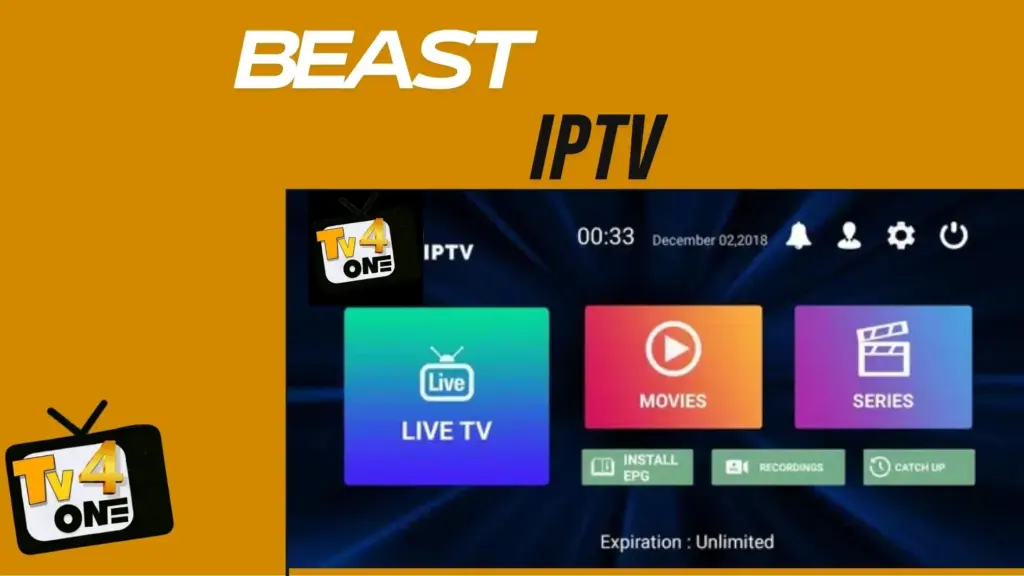
- Electronic Program Guide (EPG) support
- Multiple device compatibility across all Smart TV platforms
- VPN-friendly service
- 24-hour free trial available
- Multi-screen options for family viewing
Beast TV Pricing 2026
Before installation, here’s the current Beast TV pricing structure:
- Monthly: $9.99
- 3 Months: $19.99
- 12 Months + 3 months free: $49.99
- Free Trial: 24 hours
- Connections: 1 connection included (additional connections available)
Prerequisites for Installation
Before we start the installation process, ensure you have:
- Smart TV (Samsung, LG, Sony, Android TV, or Roku)
- Stable internet connection (minimum 25 Mbps for 4K content)
- Beast TV subscription (get the free trial first)
- About 20 minutes for complete setup
- Your TV remote control
Installation Guide for Beast TV on Smart TV
Method 1: Samsung Smart TV (Tizen OS)
Samsung Smart TVs running Tizen OS can access Beast TV through IPTV player apps available in the Samsung App Store.
Step 1: Access Smart Hub
- Press the Smart Hub button on your Samsung TV remote
- Navigate to the Apps section
- Select the Search icon (magnifying glass)
Step 2: Install IPTV Smarters Pro

- In the search bar, type “IPTV Smarters Pro“
- Select the official app from search results
- Click Download or Install
- Wait for installation to complete
- Return to Smart Hub home screen
Step 3: Configure Beast TV
- Launch IPTV Smarters Pro from your apps
- Select “Login with Xtream Codes API“
- Enter your Beast TV credentials:
- Name: Beast TV
- Username: Your Beast TV username
- Password: Your Beast TV password
- Server URL: Provided in subscription email or whatsapp
- Tap Add User
- Wait for channels to load (may take 1-2 minutes)
Step 4: Optimize Samsung TV Settings
- Go to Settings > General > Network
- Test network speed (should be 25+ Mbps)
- Enable Game Mode for reduced input lag
- Adjust picture settings for IPTV content
Alternative Samsung Apps:
- IBO Player: Available in Samsung App Store
- Smart IPTV: Requires MAC address registration
- SS IPTV: Free app with M3U playlist support
Security Tip: Keep your Beast TV credentials secure and avoid sharing them publicly. Only download apps from the official Samsung App Store to prevent security risks.
Method 2: LG Smart TV (webOS)
LG Smart TVs use webOS and support several IPTV applications through the LG Content Store.
Step 1: Open LG Content Store
- Press the Home button on your LG remote
- Navigate to LG Content Store
- Select the Search icon at the top
Step 2: Download IPTV App
- Search for “IPTV Smarters Pro“
- Select the app from search results
- Click Install
- Accept permissions if prompted
- Wait for download to complete
Step 3: Setup Beast TV Login
- Launch IPTV Smarters Pro
- Choose “Login With Xtreme Codes“
- Input your Beast TV subscription details:
- Username: From Beast TV email
- Password: Your account password
- Portal URL: Beast TV server address
- Select Login to proceed
- Channels will populate automatically
Step 4: Configure EPG and Settings
- Navigate to app settings menu
- Enable Auto EPG Update
- Set video quality to Auto or HD
- Configure parental controls if needed
Alternative LG Apps:
- SS IPTV: Popular free option
- Smart IPTV: One-time payment app
- OTT Player: Supports multiple playlists
- IPTV Extreme: Advanced features
Method 3: Android TV (Sony, TCL, Hisense, Philips)
Android TVs offer the most flexibility with direct Google Play Store access and full app compatibility.
Step 1: Open Google Play Store
- From Android TV home screen, select Apps
- Open Google Play Store
- Navigate to search function
Step 2: Install IPTV Player
- Search for “IPTV Smarters Pro” or “TiviMate“
- Select your preferred app
- Click Install
- Open app after installation
Step 3: Configure Beast TV
- Launch the IPTV app
- Select Add User or Add Playlist
- Choose Xtream Codes API login
- Enter Beast TV credentials
- Wait for playlist to sync
Step 4: Advanced Android TV Setup
- Go to Settings > Apps > IPTV app
- Clear cache for better performance
- Enable Background Data for EPG updates
- Grant all necessary permissions
Recommended Android TV Apps:
- TiviMate IPTV Player: Premium features, best interface
- IPTV Smarters Pro: Free, user-friendly
- Perfect Player: Lightweight option
- XCIPTV Player: Advanced customization
- GSE Smart IPTV: Multi-format support
Method 4: Roku TV
Roku TVs have a more limited app selection, but Beast TV can still be accessed through compatible IPTV players.
Step 1: Add IBO Player Channel
- Press Home on Roku remote
- Navigate to Streaming Channels
- Search for “IBO Player” or “IBO Player Pro“
- Select app and click Add Channel
- Wait for installation
Step 2: Configure Beast TV Playlist
- Open IBO Player from your channel list
- Select Add Playlist
- Choose connection method:
- M3U URL: Enter Beast TV M3U link
- Xtream Codes: Input server, username, password
- Name playlist “Beast TV”
- Save and wait for channels to load
Alternative Roku Methods:
- Screen mirroring from Android phone
- AirPlay from iPhone (newer Roku models)
- IPTV Smarters via screen casting
Method 5: Apple TV
Apple TV users can access Beast TV through compatible iOS apps available on the App Store.
Step 1: Download IPTV App
- Open App Store on Apple TV
- Search for “GSE Smart IPTV” or “IPTV Smarters“
- Download and install app
- Return to home screen
Step 2: Setup Beast TV
- Launch the IPTV app
- Select Add Playlist or Remote Playlist
- Choose Xtream Codes option
- Enter Beast TV server details
- Confirm and wait for sync
Step 3: Optimize Apple TV Settings
- Go to Settings > Video and Audio
- Set Match Content to ON
- Enable Match Frame Rate
- Adjust audio output settings
Screen Mirroring Methods (Alternative)
If your Smart TV doesn’t support IPTV apps directly, use screen mirroring from mobile devices.
Android Phone to Smart TV
Requirements:
- Android device with Beast TV app installed
- Smart TV with Miracast/Screen Mirroring support
- Same Wi-Fi network for both devices
Steps:
- Install IPTV Smarters Pro on Android phone
- Configure Beast TV login credentials
- Enable Screen Mirroring on Smart TV (Settings > Network)
- On Android, pull down notification panel
- Tap Cast or Screen Mirroring
- Select your Smart TV from device list
- Launch Beast TV and start streaming
iPhone/iPad to Smart TV
Requirements:
- iOS device with compatible IPTV app
- Smart TV with AirPlay support (or AirPlay adapter)
- Same Wi-Fi network
Steps:
- Install GSE Smart IPTV on iOS device
- Configure Beast TV playlist
- Open Control Center on iOS
- Tap Screen Mirroring
- Select your Smart TV
- Launch IPTV app and stream
Optimizing Beast TV Performance on Smart TV
Essential Settings for Best Streaming
Once installed, optimize these settings for optimal performance:
Network Optimization:
- Ethernet Connection: Use wired connection when possible for most stable streaming
- Speed Test: Ensure 25+ Mbps internet speed for 4K content
- Router Placement: Position router near Smart TV or use Wi-Fi extender
- 5GHz Wi-Fi: Connect to 5GHz band instead of 2.4GHz for better speed
Video Quality Settings:
- Set default quality to Auto for adaptive streaming
- Enable Hardware Acceleration for smoother 4K playback (if available)
- Increase Buffer Size to 30+ seconds for stable viewing
- Adjust Aspect Ratio to match your TV screen
Smart TV System Settings:
- Clear Cache: Weekly cache clearing prevents slowdowns
- Disable Background Apps: Close unused apps to free up memory
- Update Firmware: Keep TV software up to date
- Energy Saving OFF: Disable energy-saving during IPTV streaming
Pro Tips for Better Smart TV Experience
- Create Favorites Lists: Organize frequently watched channels for quick access
- Use EPG Guide: Enable Electronic Program Guide to see what’s playing
- Set Parental Controls: Lock adult content if sharing TV with family
- Bookmark VOD Content: Save movies and series for later viewing
- Test During Off-Peak Hours: Check stream quality at different times
- Backup Playlist: Save M3U URL in case you need to reinstall
- Use VPN: Connect Smart TV through VPN router for privacy
- Regular Restarts: Restart Smart TV weekly for optimal performance
- Channel Organization: Group channels by category for easier navigation
- Audio Settings: Configure surround sound for better audio experience
Beast TV Alternatives to Consider
Before committing to Beast TV, consider these factors:
Potential Concerns with Beast TV:
- Limited customer support compared to established providers
- Server stability can vary during peak hours
- App installation required (limited official app store presence on some platforms)
- Mixed user reviews regarding long-term reliability
- Content licensing questions in some regions
- Manual updates required for some Smart TV models
Alternative IPTV Services Worth Exploring:
When evaluating IPTV options, look for services that offer:
- Official app store presence for easier installation and updates
- Transparent licensing information and legal compliance
- Reliable 24/7 customer support (live chat, phone, email)
- Multiple server locations for better performance worldwide
- Money-back guarantees beyond just free trials
- Regular service updates and maintenance schedules
- Multi-device support with concurrent connections
- EPG and catch-up TV features included
- Dedicated Smart TV apps optimized for each platform
Maintenance and Troubleshooting
Weekly Maintenance Tasks:
- Clear app cache: Go to TV Settings > Apps > IPTV app > Clear Cache
- Test stream quality during peak hours (7-10 PM)
- Check for app updates in TV app store
- Verify subscription status and renewal date
- Restart IPTV app for optimal performance
Common Issues & Solutions:
Problem: Channels Won’t Load
Solutions:
- Check internet connection speed (run speed test)
- Clear app cache and restart TV
- Verify Beast TV subscription is active and not expired
- Try different video quality setting (switch from 4K to HD)
- Check if server is down (test on another device)
Problem: Buffering Issues
Solutions:
- Test internet speed (need 25+ Mbps for 4K, 15+ for HD)
- Switch from Wi-Fi to Ethernet connection
- Close background apps on Smart TV
- Lower stream quality temporarily
- Restart router and modem
- Move router closer to TV or use Wi-Fi extender
Problem: EPG Not Updating
Solutions:
- Force refresh EPG in app settings
- Check TV date/time settings are correct and set to auto
- Verify EPG URL is entered correctly
- Reinstall app if problem persists
- Clear app cache and data
- Check internet connection stability
Problem: Login Failed
Solutions:
- Double-check username and password (copy/paste to avoid typos)
- Verify server URL is correct
- Test credentials on Beast TV website or web player
- Contact Beast TV support for account verification
- Check if subscription has expired
- Try resetting password through Beast TV website
Problem: App Crashes or Freezes
Solutions:
- Clear app cache and data
- Restart Smart TV completely
- Uninstall and reinstall IPTV app
- Check for app updates
- Verify TV has enough storage space
- Update TV firmware to latest version
Problem: No Sound or Audio Issues
Solutions:
- Check TV volume and mute settings
- Verify audio output settings in IPTV app
- Test audio with different channels
- Check HDMI/audio cable connections
- Restart both TV and external audio devices
- Switch audio codec in app settings
Problem: Video Quality Poor
Solutions:
- Check internet speed (upgrade plan if needed)
- Adjust video quality settings to higher resolution
- Enable hardware acceleration in app settings
- Test during off-peak hours
- Try different server if available
- Contact ISP about throttling
Conclusion: Making the Right Choice
Installing Beast TV on Smart TV is relatively straightforward for most modern Smart TVs, but choosing the right IPTV service requires careful consideration. While Beast TV offers over 33,000 channels starting at $9.99/month, the installation complexity varies by TV brand and the mixed reliability reports suggest exploring all options before committing.
Key Decision Factors:
- Service reliability and consistent uptime (look for 99%+ uptime guarantees)
- Customer support quality and response times
- Content licensing transparency and legality
- Installation convenience (official apps vs workarounds)
- Trial period length for proper testing (24 hours may not be enough)
- Device compatibility with your specific Smart TV model
- EPG and additional features included in price
- Refund policy in case service doesn’t meet expectations
- Multi-device support for streaming on multiple TVs
Smart TV Compatibility Summary:
- Android TV:
 Excellent compatibility, full app support, easiest installation
 - Samsung (Tizen): Good compatibility, app store access, multiple app options
- LG (webOS): Good compatibility, app store access, reliable performance
- Roku TV:
 Limited apps, IBO Player recommended, screen mirroring option
 - Apple TV: Excellent compatibility via iOS apps, premium experience
Final Recommendation:
For Smart TV users, we recommend:
- Start with the 24-hour free trial to test on your specific TV model
- Test during peak viewing hours (7-10 PM) for real-world performance
- Verify channel availability for your preferred content (sports, movies, international)
- Check customer support responsiveness before annual commitment
- Compare with alternative IPTV services offering official apps
- Read user reviews specific to your Smart TV brand
- Test EPG functionality and program guide accuracy
- Verify streaming quality in your preferred resolution (HD/4K)
Need help choosing the right IPTV service for your Smart TV? Consider services that offer extended free trials, official app store availability across all Smart TV platforms, transparent licensing, and responsive customer support for the most hassle-free experience.
Need Better IPTV Service?
If you’re looking for a more reliable IPTV solution with guaranteed compatibility across all Smart TV brands, TV4ONE offers premium IPTV services specifically optimized for Smart TVs with:
- Official apps for Samsung, LG, Android TV, and Roku
- 24/7 technical support for installation assistance
- 99.9% uptime guarantee with zero buffering technology
- Extended trial period for thorough testing
- Multi-device support with concurrent connections
- Regular updates and maintenance
- Transparent pricing with no hidden fees
- Money-back guarantee for risk-free trial
- Premium EPG with 7-day program guide
- Dedicated customer support team
Get TV4ONE IPTV Service for a superior Smart TV streaming experience with hassle-free setup and professional support.

Amine Sebbar is a 34-years-old digital entrepreneur passionate about innovation, design, and online business. He is the founder of TV4ONE, a premium TV streaming platform delivering high-quality digital entertainment experiences to users worldwide. With a strong focus on performance, reliability, and user experience, Amine has built and scaled multiple online projects across streaming services, web development, and digital branding.