

What You’ll Need Before Starting
Before we dive in, make sure you have:
- A device: Android phone/tablet OR iPhone/iPad (iOS 12 or newer)
- IPTV subscription: Active account with login credentials
- Internet connection: Wi-Fi or mobile data
- 5-10 minutes: That’s all the time this takes
Got everything? Perfect. Let’s get started.
Step 1: Download the Right IPTV App
First things first—you need to download IPTV Smarters, the most popular and reliable IPTV player for both Android and iOS.
For Android Users (Samsung, Huawei, OnePlus, etc.)
Download IPTV Smarters Pro:
- Open your web browser
- Search for “IPTV Smarters Pro APK download”
- Download the APK file from the official website
- When prompted, allow installation from unknown sources (Settings → Security → Unknown Sources)
- Open the downloaded file and tap “Install”
- Wait 10-15 seconds for installation to complete
Why not Google Play? IPTV Smarters Pro isn’t available in the Play Store, but downloading the APK directly from the official site is completely safe.
For iPhone & iPad Users
Download IPTV Smarters Lite:
- Open the App Store
- Search for “IPTV Smarters Lite”
- Tap “Get” and authenticate with Face ID or password
- Wait for automatic download and installation
No jailbreak needed. The app works perfectly on standard iOS 12 and newer.
 Supported Devices:
- Android phones & tablets (all brands)
- iPhone & iPad (iOS 12+)
- No special setup or rooting required
Step 2: Understanding Your Login Options
Once you’ve installed the app, you’ll need to connect it to your IPTV service. There are two ways to do this:
Method 1: Xtream Codes API (Recommended)
This is the easier and more feature-rich option. You’ll receive three things from your IPTV provider:
- Username
- Password
- Server URL (looks like: http://example.com:port)
Why choose this method?
- Automatic TV guide (EPG) loading
- Access to Catch-Up TV features
- Cleaner, faster interface
- Easier updates and management
Method 2: M3U Playlist URL
Some providers give you a single long URL instead. This works too, but has fewer features:
- No automatic EPG
- No Catch-Up TV
- Manual playlist updates needed
Most modern providers use Xtream Codes API—including premium services like TV4ONE—because it simply works better.
Need an IPTV Subscription?
TV4ONE offers premium IPTV streaming with:
- 33,000+ live channels in HD/4K
- 140,000+ movies and series on demand
- All major sports and PPV events
- Multi-device support (up to 5 screens)
- No contracts, cancel anytime
Start your risk-free trial → tv4one.com
Step 3: Setting Up with Xtream Codes API
Now let’s connect your IPTV service to the app. This is where the magic happens.
Launch Setup Process:
- Open IPTV Smarters (Pro on Android, Lite on iOS)
- Tap “Add User” on the welcome screen
- Select “Login with Xtream Codes API”
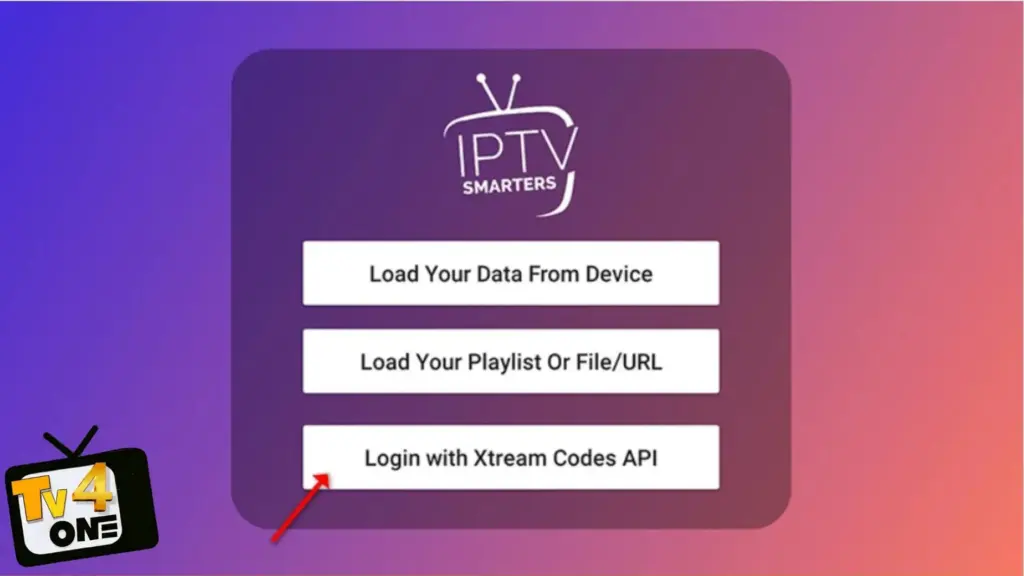
You’ll see a form with four fields to fill in.
Enter Your Credentials:
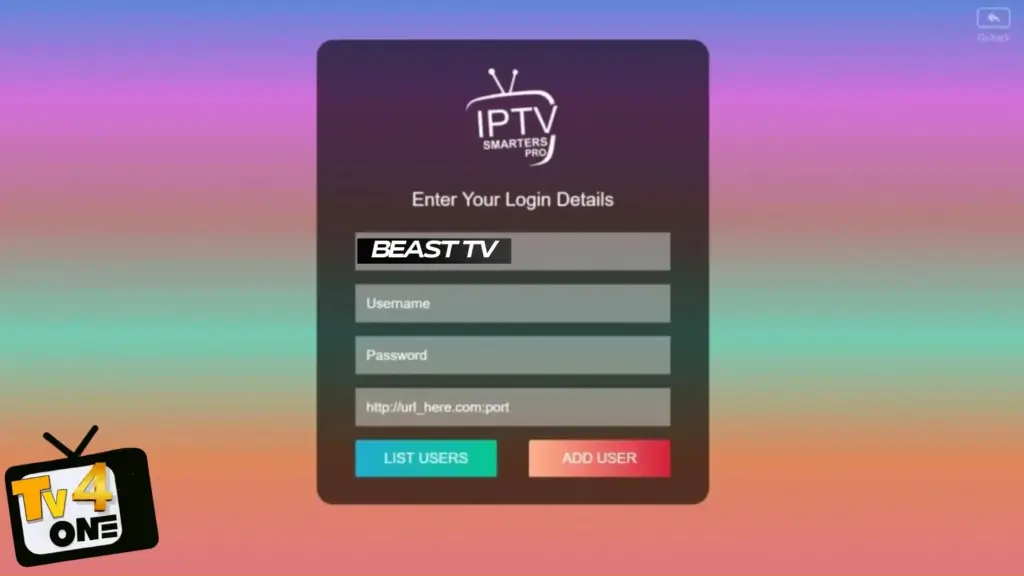
Name: Give your connection a label (example: “TV4ONE” or “BEAST TV”)
- This is just for you—choose anything
Username: Provided by your IPTV service
- Check your welcome email or WhatsApp message
- Usually a short name or number
Password: Also from your IPTV provider
- Case-sensitive, so type carefully
- Copy-paste if possible to avoid typos
Server URL: The full server address
- Format: http://yourserver.com:port
- Must include “http://” at the beginning
- Include the port number (the numbers after the colon)
Complete the Setup:
- Double-check everything for typos (this causes 90% of login errors)
- Tap “ADD USER”
- Wait 10-30 seconds while the app connects
Can’t find your login details? Check your email inbox (and spam folder). Still nothing? Contact your IPTV provider’s support—they can resend credentials instantly.
Step 4: Wait for Your Content to Load
After clicking “Add User,” the app starts loading your streaming library.
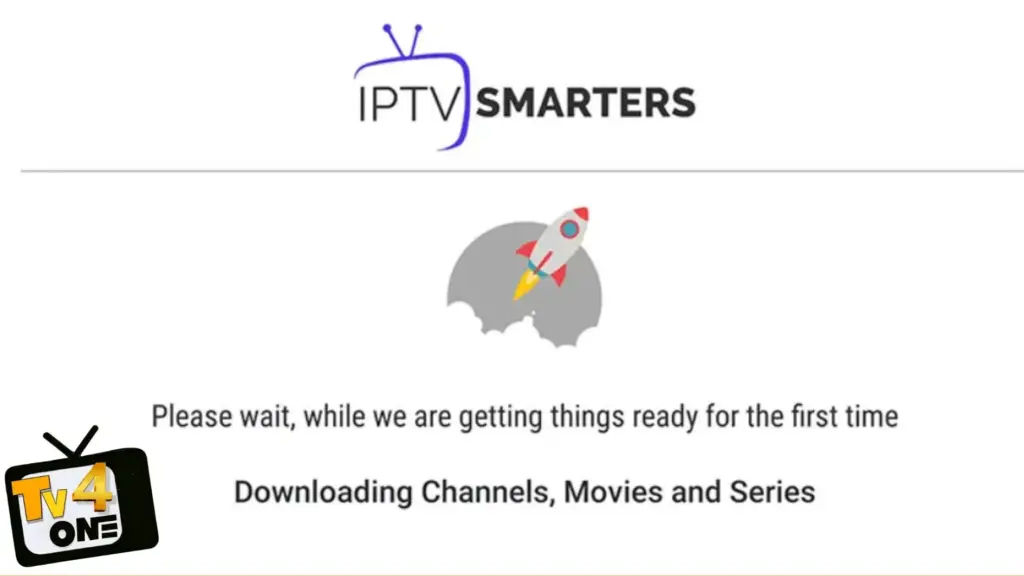
What’s happening behind the scenes:
- Loading all available live TV channels
- Fetching movie and series libraries
- Downloading the TV guide (EPG)
- Organizing content into categories
First-time loading takes 30-60 seconds. This is normal. The app is downloading your entire channel list and metadata.
You’ll know it’s working when:
- Loading bar appears and progresses
- Channel categories start appearing
- Dashboard becomes visible
If loading seems stuck:
- Wait 2 minutes—sometimes it just takes time
- Check your internet connection
- Try closing and reopening the app
- Verify your login credentials were entered correctly
Step 5: Start Watching Live TV
Success! Your dashboard is now loaded with content. Time to start streaming.
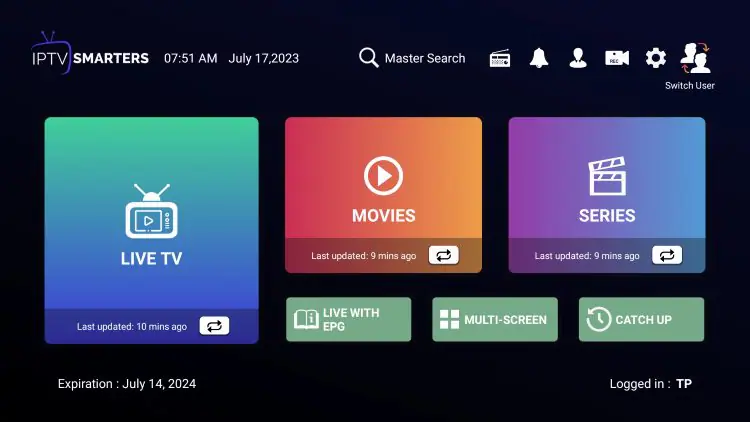
Navigate Your Dashboard:
You’ll see several icons representing different content sections:
 Live TV – All your live channels organized by category
  Movies – On-demand movie library Series – TV shows and series collection
  Catch Up – Previously aired content (if supported)
  Settings – Customize your viewing experience
Watch Your First Channel:
- Tap “Live TV” icon
- Choose a category (News, Sports, Entertainment, Movies, etc.)
- Select a channel from the list
- Double-tap the preview window to go fullscreen
That’s it. You’re now streaming IPTV.
Basic Playback Controls:
- Single tap: Show/hide controls
- Double tap: Enter/exit fullscreen
- Swipe left/right: Change channels (in fullscreen)
- Back button: Return to menu
- Three dots: Access advanced settings
Step 6: Browse Channel Categories
IPTV organizes thousands of channels into easy-to-navigate groups.
Common Channel Categories:
By Country:
- USA channels
- UK channels
- Canada channels
- International options
Finding Specific Channels:
Use the search function:
- Look for the magnifying glass icon
- Type the channel name
- Results appear instantly
Create a favorites list:
- Long-press any channel
- Select “Add to Favorites”
- Quick access from main menu
Step 7: Explore Movies & Series (VOD)
If your subscription includes on-demand content, you’ve got access to a massive library.
Browse Movies:
- Tap the “Movies” icon from your dashboard
- Browse by genre, year, or popularity
- Use search to find specific titles
- Tap any movie to start streaming instantly
Watch TV Series:
- Tap the “Series” icon
- Select your show
- Choose season and episode
- Start watching
Pro tip: Most IPTV services update their VOD libraries weekly with new releases.
Alternative: Setting Up with M3U Playlist URL
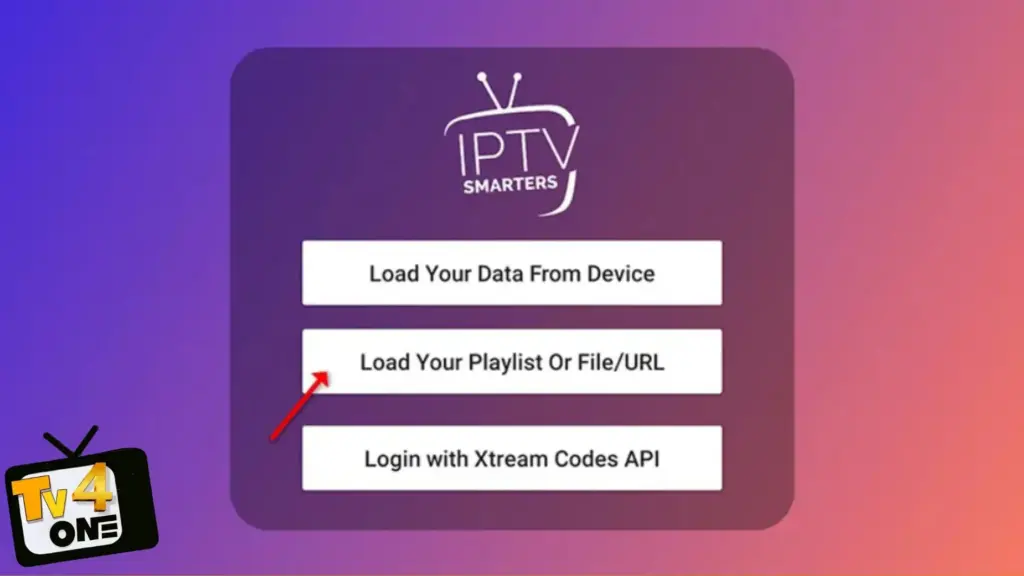
Don’t have Xtream Codes credentials? You can also connect using an M3U playlist URL.
When to Use M3U:
- Your provider only offers M3U links
- Testing free IPTV services
- Using custom playlists
- Xtream Codes isn’t working
M3U Setup Steps:
- Open IPTV Smarters and tap “Add User”
- Select “Load Your Playlist or File/URL” (instead of Xtream Codes)
- Fill in the details:
- Playlist Name: Any name you want
- File/URL: Paste your complete M3U URL here
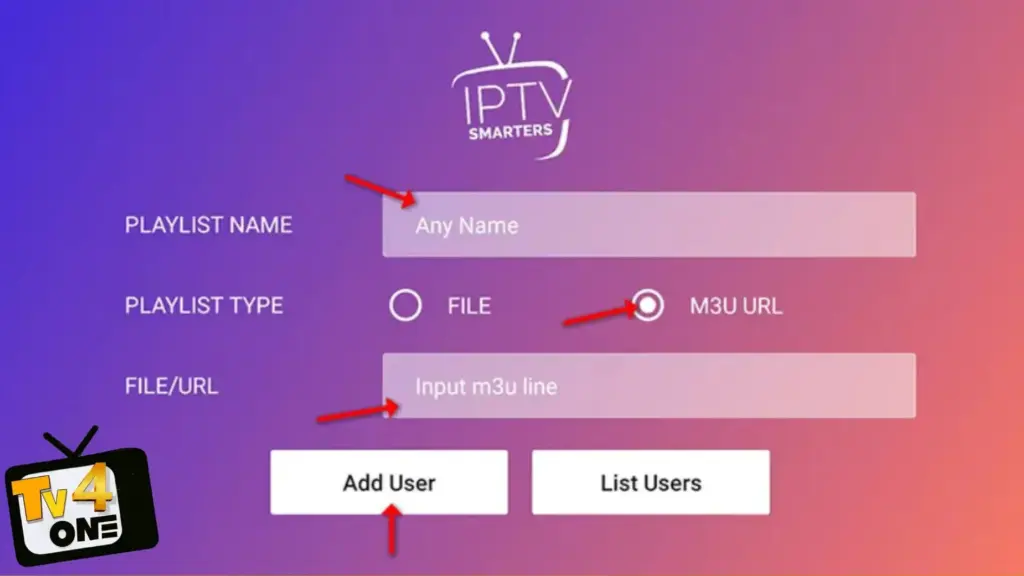
- Tap “Add User”
- Wait for loading (may take longer than Xtream Codes)
M3U Limitations:
- No automatic TV guide
- No Catch-Up TV functionality
- Manual updates required
- Slower loading times
That’s why Xtream Codes is recommended—it just works better and provides more features automatically.
Troubleshooting Common Problems
Even with clear instructions, sometimes things go wrong. Here’s how to fix the most common issues:
 “Invalid Credentials” Error
Problem: Login fails with error message
Solutions:
- Check for typos in username, password, and server URL
- Remove any spaces before or after credentials
- Verify server URL starts with “http://”
- Confirm your subscription is active
- Try copy-pasting credentials instead of typing
- Contact your provider to verify account status
 Endless Loading or Buffering
Problem: Channels won’t load or constantly buffer
Solutions:
- Check internet speed (need 5-10 Mbps minimum for HD)
- Close other apps using bandwidth
- Switch from Wi-Fi to mobile data (or vice versa)
- Try a different channel to test if it’s server-specific
- Restart your router/modem
- Change video player in Settings
No Channels Showing
Problem: Login works but no content appears
Solutions:
- Wait 2-3 minutes—first load takes time
- Pull down to refresh content
- Log out and log back in
- Verify subscription hasn’t expired
- Contact provider support
 No Audio or Black Screen
Problem: Video plays but no sound, or screen stays black
Solutions:
- Check device volume isn’t muted
- Try different video player (Settings → Player)
- Install VLC or MX Player for better codec support
- Update IPTV Smarters to latest version
- Test different channel
 App Keeps Crashing
Problem: IPTV Smarters closes unexpectedly
Solutions:
- Clear app cache (Settings → Apps → IPTV Smarters → Clear Cache)
- Update to latest app version
- Restart your device
- Free up storage space
- Reinstall the app completely
 Can’t Install APK (Android)
Problem: Android blocks installation
Solutions:
- Enable “Unknown Sources” (Settings → Security)
- For Android 10+: Settings → Apps → Special Access → Install Unknown Apps → [Your Browser] → Allow
- Download APK again if file seems corrupted
- Try different browser
Frequently Asked Questions
Is IPTV legal?
IPTV technology is legal. Legality depends on your service provider having proper content licensing. Use legitimate providers like TV4ONE that operate legally.
Do I need VPN for IPTV?
Not required for legal services, but many users choose VPNs for privacy and accessing geo-restricted content. VPNs can also prevent ISP throttling.
What internet speed do I need?
- SD quality: 3-5 Mbps
- HD quality: 5-10 Mbps
- 4K quality: 25+ Mbps
Test your speed at speedtest.net.
Can I use one subscription on multiple devices?
You can install the app on unlimited devices, but simultaneous streaming depends on your subscription plan. Most offer 1-5 concurrent connections.
Is IPTV Smarters free?
Yes, the app is completely free. You only pay for your IPTV subscription service.
What’s the difference between Pro and Lite?
Pro (Android) and Lite (iOS) are the same app with identical features. Different names due to platform requirements.
Why does first loading take so long?
The app downloads your complete channel list, TV guide data, and metadata. This only happens once—subsequent logins are much faster.
Can I record shows?
IPTV Smarters doesn’t have built-in recording, but some providers offer cloud DVR. You can also use your device’s screen recording feature.
Get Started with Premium IPTV
TV4ONE – Your Complete Streaming Solution
✓ 33,000+ channels in crystal-clear HD/4K
✓ 140,000+ movies & series on demand
✓ All major sports leagues and PPV events
✓ Electronic Program Guide included
✓ Catch-Up TV on most channels
✓ Stream on up to 5 devices simultaneously
✓ No buffering on premium servers
✓ 24/7 customer support
✓ No contracts—cancel anytime
Special offer for new customers: Risk-free trial available
Start streaming today → tv4one.com
Disclaimer: This guide helps users set up legitimate IPTV services. Always ensure your IPTV provider operates legally with proper content licensing. TV4ONE is a legitimate service provider operating in full compliance with regulations.
© 2026 TV4ONE | Premium IPTV Streaming Services

Amine Sebbar is a 34-years-old digital entrepreneur passionate about innovation, design, and online business. He is the founder of TV4ONE, a premium TV streaming platform delivering high-quality digital entertainment experiences to users worldwide. With a strong focus on performance, reliability, and user experience, Amine has built and scaled multiple online projects across streaming services, web development, and digital branding.