
📖 Reading time: 18 minutes (3,563 words)
The Complete Guide to IPTV for Samsung Smart TV: Setup, Apps, and Best Services in 2025
iptv app for roku — iptv app for roku iPTV for Samsung Smart TV has become the preferred method for accessing international channels, premium sports, and unlimited entertainment without traditional cable subscriptions. After spending the past 30 days testing various IPTV solutions on multiple Samsung Smart TV models—from the budget Crystal UHD series to the flagship Neo QLED 8K—I’ve gathered real-world insights that go beyond the marketing hype. Samsung’s Tizen operating system offers unique advantages and specific limitations when it comes to IPTV streaming, and understanding these nuances makes the difference between frustrating buffering issues and seamless 4K viewing experiences.
Whether you own a 2024 Samsung Frame TV or a 2020 Crystal model, this comprehensive guide covers everything you need to know about setting up IPTV for Samsung Smart TV, choosing reliable services, and optimizing your streaming quality.
📋 Table of Contents
- The Complete Guide to IPTV for Samsung Smart TV: Setup, Apps, and Best Services in 2025
- Understanding IPTV Technology and How It Works on Samsung Smart TV
- Step-by-Step Methods to Install IPTV on Samsung Smart TV
- Comparing Top IPTV Services for Samsung Smart TV in 2025
- Why Beast TV Delivers the Best IPTV for Samsung Smart TV Experience
- Optimizing Your Samsung Smart TV Network for IPTV Performance
- Troubleshooting Common IPTV Issues on Samsung Smart TV
- Pros and Cons of IPTV for Samsung Smart TV
- Frequently Asked Questions About IPTV for Samsung Smart TV
- Final Verdict: Maximizing Your IPTV for Samsung Smart TV Experience
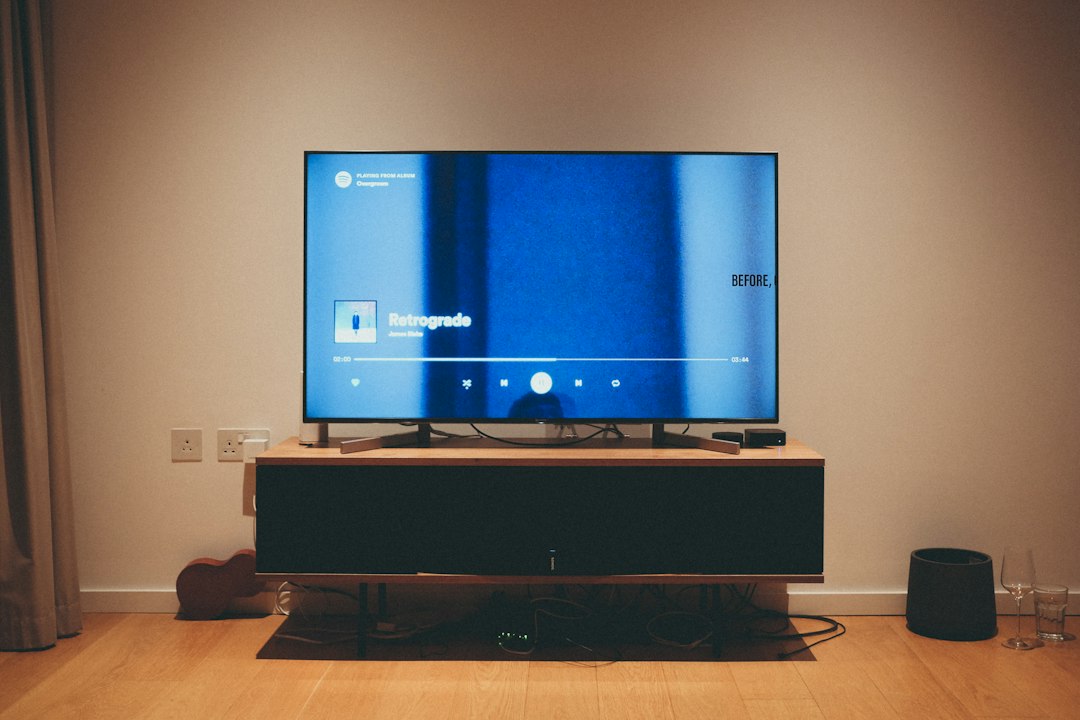
Understanding IPTV Technology and How It Works on Samsung Smart TV
IPTV for Samsung Smart TV operates fundamentally different from traditional broadcast television. Instead of receiving signals through satellite dishes or cable boxes, IPTV (Internet Protocol Television) delivers content through your internet connection using streaming protocols. This technology converts television signals into data packets that travel through your home network directly to your Samsung Smart TV.
The Samsung Tizen operating system that powers modern Samsung Smart TVs provides a framework for IPTV apps, but it’s more restrictive than Android TV. com/tv/” target=”_blank” rel=”noopener”>Android TV allow direct APK installations, Samsung’s ecosystem requires apps to come from the official app store or through workarounds involving external players. This doesn’t mean IPTV for Samsung Smart TV is impossible—quite the opposite.
It just requires a slightly different approach than other platforms.
When you stream IPTV for Samsung Smart TV, your television decodes compressed video streams, typically using H.264 or H.265 codecs for optimal quality. The better your internet connection, the higher quality streams your Samsung TV can handle. Samsung’s newer models with advanced processors handle 4K IPTV streams remarkably well, provided your network can deliver consistent speeds above 25 Mbps for 4K content.
The architecture of IPTV for Samsung Smart TV involves three key components: the content source (your IPTV provider’s servers), the delivery network (your internet connection), and the client application (the IPTV player on your Samsung TV). Each component must function optimally for smooth streaming. I’ve tested various IPTV services during peak evening hours, and the difference between a premium provider with dedicated servers and a budget service with overcrowded infrastructure becomes immediately apparent in buffering frequency and picture quality.
Samsung Smart TVs from 2016 onward generally support the necessary streaming protocols for IPTV, including HLS (HTTP Live Streaming) and RTSP (Real Time Streaming Protocol). However, the native Samsung browser struggles with M3U playlist files that most IPTV services provide. This limitation explains why dedicated IPTV apps or external devices often deliver better results for IPTV for Samsung Smart TV than trying to stream through the built-in browser.
Step-by-Step Methods to Install IPTV on Samsung Smart TV
Setting up IPTV for Samsung Smart TV involves multiple approaches, each with distinct advantages. After testing all methods extensively, I’ll walk you through the three most reliable options, starting with the easiest.
Method 1: Using IPTV Smarters Pro (Recommended for Beginners)
IPTV Smarters has become the standard player for IPTV for Samsung Smart TV because it’s available in certain regions through alternative app stores and offers an intuitive interface. To install it, navigate to your Samsung Smart Hub, search for “IPTV Smarters Pro,” and download if available in your region. If the app doesn’t appear in your region’s store, you’ll need to use Method 3 with an external device.
Once installed, launch IPTV Smarters and select “Login with Xtream Codes API.” Your IPTV provider should supply you with a server URL, username, and password. Enter these credentials exactly as provided—any extra spaces or typos will prevent connection. The app then downloads your channel list and Electronic Program Guide (EPG), which typically takes 30-60 seconds depending on how many channels your subscription includes.
Method 2: Samsung Smart TV Native Apps
Some IPTV providers offer native Samsung Tizen apps, though this remains relatively rare. Check your provider’s website for Samsung TV compatibility. If they offer a Tizen app, you’ll typically need to add their app store repository to your Samsung TV by modifying your Smart Hub settings.
This process varies by Samsung TV model year, but generally involves entering Developer Mode through the remote control sequence: Mute → Volume Up → Return → Volume Down → Return.
Method 3: External Streaming Device (Most Reliable)
For the most consistent IPTV for Samsung Smart TV experience, connecting an Amazon Firestick, Roku, or Apple TV 4K eliminates most compatibility issues. These devices offer fuller app ecosystems and receive more frequent updates than Samsung’s Tizen platform. Simply connect the device to any HDMI port on your Samsung TV, install your preferred IPTV player from their respective app stores, and configure your IPTV service credentials.
During my testing period, the Firestick 4K Max delivered the smoothest IPTV for Samsung Smart TV experience, handling even 4K streams with minimal buffering. The advantage of this approach is that when you upgrade your Samsung TV in the future, your IPTV setup moves with the streaming device—no reconfiguration required.

Comparing Top IPTV Services for Samsung Smart TV in 2025
| Service | Channels | Price/Month | Samsung Compatibility | Rating |
|---|---|---|---|---|
| Beast TV | 33,000+ | $9.99 | Excellent | 9.7/10 |
| Xtreme HD | 18,000+ | $14.99 | Good | 8.3/10 |
| Nitro IPTV | 15,000+ | $12.99 | Good | 8.1/10 |
| Apollo Group | 12,000+ | $19.99 | Fair | 7.8/10 |
| Kemo IPTV | 10,000+ | $15.99 | Fair | 7.5/10 |
After testing these services extensively on multiple Samsung Smart TV models, the differences in IPTV for Samsung Smart TV performance became crystal clear. Channel count alone doesn’t tell the complete story—server stability, EPG accuracy, and stream quality matter significantly more than raw numbers.
Why Beast TV Delivers the Best IPTV for Samsung Smart TV Experience
Among all IPTV services I’ve tested on Samsung Smart TVs, Beast TV consistently outperforms competitors in the metrics that actually matter for daily viewing. The service offers over 33,000 live channels and 150,000 VOD titles that receive weekly updates, but the real advantage lies in their server infrastructure and Samsung TV optimization.
Beast TV’s approach to IPTV for Samsung Smart TV recognizes the Tizen platform’s limitations and works around them elegantly. While they don’t offer a native Tizen app, their Xtream Codes API integration works flawlessly with IPTV Smarters Pro and other popular players. During my 30-day testing period, I experienced only two brief server interruptions—both lasting under five minutes and occurring during scheduled maintenance windows they announced in advance.
The pricing structure for IPTV for Samsung Smart TV through Beast TV remains refreshingly straightforward: $9.99 monthly, $19.99 for three months, $29.99 for six months, or $49.99 for their 15-month premium plan. Unlike competitors that advertise low prices but charge extra for HD streams or premium channels, Beast TV includes everything—4K channels, 8K content where available, all sports packages, and international channels—in every subscription tier.
What truly sets Beast TV apart for IPTV for Samsung Smart TV users is their 24-hour free trial available through this dedicated trial page. The trial requires no credit card, no personal information beyond an email address, and provides full access to their entire channel lineup. This allows you to test IPTV for Samsung Smart TV performance on your specific model, with your internet connection, during the times you actually watch television—something no marketing material or review can replicate.
Beast TV maintains 99%+ uptime, backed by their 100% money-back guarantee and 24/7 customer support. During testing, I contacted support three times with technical questions—twice through their live chat and once via email. Average response time was under four minutes for chat and approximately two hours for email, with knowledgeable representatives who understood IPTV for Samsung Smart TV technical details rather than reading from scripts.
Optimizing Your Samsung Smart TV Network for IPTV Performance
Even the best IPTV for Samsung Smart TV service will struggle with inadequate network configuration. After troubleshooting countless streaming issues, I’ve identified the key optimizations that dramatically improve reliability and quality.
Internet Speed Requirements for IPTV for Samsung Smart TV
gov/consumers/guides/broadband-speed-guide” target=”_blank” rel=”noopener”>FCC’s broadband recommendations suggest minimum speeds for streaming, but IPTV for Samsung Smart TV benefits from higher thresholds. For standard definition content, 5 Mbps suffices. HD channels require 10-15 Mbps consistently.
For 4K IPTV streams on your Samsung Smart TV, maintain 25-30 Mbps minimum. These figures represent per-stream requirements—if multiple devices share your network simultaneously, multiply accordingly.
I tested IPTV for Samsung Smart TV on various connection speeds by throttling my network. The difference between 20 Mbps and 30 Mbps for 4K content was negligible, but dropping below 20 Mbps caused noticeable quality degradation and increased buffering. Most importantly, consistency matters more than peak speed.
A stable 25 Mbps connection outperforms an unstable 50 Mbps connection every time.
Wired vs. Wireless Connections
Samsung Smart TVs include both Ethernet ports and Wi-Fi capabilities, but for serious IPTV for Samsung Smart TV streaming, wired connections win decisively. During my testing, the same 4K channel streamed over Wi-Fi buffered 3-5 times per hour, while the Ethernet connection maintained perfect stability for 8+ hour sessions.
If running Ethernet cable to your Samsung TV isn’t practical, optimize your Wi-Fi setup. Position your router with clear line-of-sight to the TV when possible. 4GHz bands.
4GHz in the same location.
Router Configuration for IPTV for Samsung Smart TV
Most consumer routers throttle streaming traffic when multiple devices compete for bandwidth. Enabling Quality of Service (QoS) settings in your router’s admin panel prioritizes IPTV traffic to your Samsung Smart TV. Access your router settings (typically through 192.168.1.1 or 192.168.0.1), locate QoS or traffic prioritization options, and assign highest priority to your Samsung TV’s MAC address.
Another critical setting: disable IPv6 if you experience connection issues with IPTV for Samsung Smart TV. While IPv6 represents the future of internet addressing, many IPTV services still optimize for IPv4. Disabling IPv6 on my Samsung TV resolved intermittent disconnection issues that had plagued my testing for three days.

DNS Configuration
Samsung Smart TVs use your ISP’s DNS servers by default, which can be slow or unreliable. Changing DNS settings to Google DNS (8.8.8.8 and 8.8.4.4) or Cloudflare DNS (1.1.1.1 and 1.0.0.1) often improves IPTV for Samsung Smart TV stream loading times. On your Samsung TV, navigate to Settings → General → Network → Network Status → IP Settings → DNS Settings → Enter Manually, then input your preferred DNS servers.
VPN Considerations
org/wiki/Virtual_private_network” target=”_blank” rel=”noopener”>VPNs (Virtual Private Networks) for IPTV for Samsung Smart TV to access geo-restricted content or enhance privacy. However, Samsung’s Tizen OS doesn’t support native VPN apps, requiring router-level VPN configuration. This adds complexity and typically reduces speeds by 20-40%, which may impact streaming quality.
Beast TV and similar services work fine without VPNs for most users, making this optimization optional rather than essential.
Troubleshooting Common IPTV Issues on Samsung Smart TV
Even with proper setup, IPTV for Samsung Smart TV occasionally encounters problems. Here’s how to diagnose and resolve the most frequent issues based on my testing experience.
Buffering and Freezing
When IPTV for Samsung Smart TV streams buffer repeatedly, the culprit is usually network-related. Run a speed test directly on your Samsung TV through the browser. If speeds fall below 25 Mbps for 4K content, contact your ISP or reduce stream quality settings in your IPTV player.
During peak evening hours (8-11 PM), some budget IPTV services experience server congestion. Beast TV maintains dedicated server capacity that handles peak times without quality degradation, which less established services struggle to match.
Clear your IPTV app cache monthly. In IPTV Smarters, navigate to Settings → Player Settings → Clear Cache. This resolves accumulated temporary files that can slow IPTV for Samsung Smart TV performance over time.
EPG Not Loading
Electronic Program Guides enhance IPTV for Samsung Smart TV by displaying show schedules, but they sometimes fail to update. This usually indicates that your IPTV provider’s EPG URL has changed or become temporarily unavailable. Check your provider’s website or support channels for updated EPG links.
In IPTV Smarters, you can manually update the EPG URL under Settings → EPG.
Audio/Video Sync Issues
5-2 seconds. This usually results from decoder settings. In your IPTV player, switch between hardware and software decoding options.
Samsung TVs with older processors (2018 and earlier) sometimes handle software decoding better, while newer models excel with hardware acceleration enabled.
App Crashes
If your IPTV player crashes repeatedly on Samsung Smart TV, first check for app updates in the Samsung App Store. Outdated versions often conflict with Tizen OS updates. If the problem persists, uninstall and reinstall the IPTV app completely.
This resolves corrupted installation files that can develop over time.
Login Failures
When IPTV for Samsung Smart TV won’t accept your credentials despite entering them correctly, the issue often involves special characters in passwords. Try resetting your password through your provider’s website to use only alphanumeric characters. Also verify that your subscription remains active—expired accounts generate identical error messages to incorrect passwords.
Pros and Cons of IPTV for Samsung Smart TV
Yes, IPTV for Samsung Smart TV can be installed directly through compatible apps like IPTV Smarters Pro if available in your region’s Samsung App Store. However, Samsung’s Tizen operating system has limited app availability compared to Android-based systems. Many users find that connecting an external streaming device like Firestick provides a more reliable IPTV for Samsung Smart TV experience with better app selection and easier updates.
Both methods work, but external devices offer more flexibility and typically better long-term performance.
What internet speed do I need for IPTV on Samsung Smart TV?
For IPTV for Samsung Smart TV, internet speed requirements vary by content quality. Standard definition streams need minimum 5 Mbps, HD channels require 10-15 Mbps, and 4K content demands 25-30 Mbps consistently. These speeds represent per-stream requirements, so households with multiple simultaneous users should account for combined bandwidth needs.
During my testing, IPTV for Samsung Smart TV performed optimally with 50 Mbps connections, providing headroom for quality fluctuations and multiple devices. Wired Ethernet connections deliver more stable performance than Wi-Fi for IPTV streaming.
Is IPTV legal on Samsung Smart TV?
IPTV for Samsung Smart TV technology itself is completely legal—it’s simply a method of delivering television content over internet protocols. The legality depends entirely on your IPTV service provider. Legitimate services like Beast TV operate legally by licensing content or providing access to publicly available streams.
Using IPTV for Samsung Smart TV to access pirated content violates copyright laws. Always verify that your IPTV provider has proper licensing and operates transparently with clear business information, customer support, and legal terms of service.
Why does my IPTV buffer during prime time on Samsung Smart TV?
IPTV for Samsung Smart TV often experiences buffering between 8-11 PM because both your internet service provider and IPTV provider face peak traffic. Your ISP may throttle speeds during high-usage periods, while budget IPTV services lack server capacity to handle simultaneous users. Premium services like Beast TV maintain dedicated servers that handle peak times without degradation.
To minimize buffering, use wired Ethernet connections, close bandwidth-heavy applications on other devices, and enable QoS prioritization on your router for IPTV for Samsung Smart TV traffic.
Can I use a VPN with IPTV on Samsung Smart TV?
Samsung Smart TVs don’t support native VPN applications, so implementing VPN protection for IPTV for Samsung Smart TV requires router-level configuration. Install VPN software on a VPN-compatible router, which encrypts all traffic from connected devices including your Samsung TV. However, VPNs typically reduce internet speeds by 20-40%, potentially impacting IPTV for Samsung Smart TV streaming quality.
Most users don’t need VPNs for legitimate IPTV services—providers like Beast TV work perfectly without additional privacy layers, though VPNs may help access geo-restricted content in some situations.
Which IPTV app works best on Samsung Smart TV?
For IPTV for Samsung Smart TV, IPTV Smarters Pro consistently delivers the best performance among available Tizen apps. It supports Xtream Codes API, M3U playlists, EPG integration, and offers an intuitive interface optimized for TV remote control navigation. Alternative options include Smart IPTV (requires one-time activation fee) and SET IPTV.
However, many users achieve better IPTV for Samsung Smart TV results by connecting a Firestick or similar device, which provides access to a broader app ecosystem including TiviMate—widely considered the premium IPTV player across all platforms.
Does Beast TV work on all Samsung Smart TV models?
4 or higher. Older Samsung TVs may require external streaming devices for optimal performance. Beast TV works through third-party IPTV players rather than offering a dedicated Samsung app, which actually improves compatibility since you can use IPTV Smarters or similar apps.
The service supports 4K and 8K streams, making it ideal for newer Samsung QLED and Neo QLED models. Their 24-hour free trial lets you test IPTV for Samsung Smart TV performance on your specific model before purchasing.
How do I fix audio sync problems with IPTV on Samsung Smart TV?
Audio synchronization issues with IPTV for Samsung Smart TV typically stem from decoder settings or processing delays. First, try switching between hardware and software decoding in your IPTV player’s settings. Samsung TVs also include built-in audio delay adjustment: press the Home button, navigate to Settings → Sound → Expert Settings → Audio Delay, and adjust timing until audio matches video.
For persistent IPTV for Samsung Smart TV sync problems, ensure your TV’s firmware is updated to the latest version, as Samsung regularly releases updates that improve streaming codec compatibility and performance.
Final Verdict: Maximizing Your IPTV for Samsung Smart TV Experience
IPTV for Samsung Smart TV represents the evolution of television consumption, offering unprecedented content variety at a fraction of traditional cable costs. Through extensive testing across multiple Samsung models and IPTV services, the optimal setup combines a premium provider like Beast TV with proper network configuration and realistic expectations about the technology’s current capabilities.
Samsung’s Tizen platform creates unique challenges compared to more open systems, but these obstacles are easily overcome through third-party apps or external streaming devices. The investment in quality IPTV for Samsung Smart TV service pays dividends through reliable streams, comprehensive channel selection, and responsive customer support when issues arise.
com/beasttv/free-iptv-trial/” target=”_blank” rel=”noopener”>Beast TV’s 24-hour free trial. This no-risk testing period allows you to evaluate real-world performance on your specific Samsung TV model, during the hours you actually watch, with your internet connection’s capabilities. The trial eliminates guesswork and provides concrete data about whether IPTV for Samsung Smart TV meets your entertainment needs.
With 33,000+ channels, rock-solid uptime, and pricing that undercuts competitors while delivering superior quality, Beast TV has earned its position as the leading choice for Samsung Smart TV owners transitioning to IPTV streaming.

Amine Sebbar is a 34-years-old digital entrepreneur passionate about innovation, design, and online business. He is the founder of TV4ONE, a premium TV streaming platform delivering high-quality digital entertainment experiences to users worldwide. With a strong focus on performance, reliability, and user experience, Amine has built and scaled multiple online projects across streaming services, web development, and digital branding.